

Imagine this. You’re attending an important online meeting, sharing a presentation, or uploading a business file. Suddenly, your Wi-Fi disconnects. You reconnect, continue working, and within a few minutes, it happens again.
Frustrating, isn’t it?
When office Wi-Fi keeps disconnecting, the first thing most people blame is their internet service provider (ISP). But what if the actual problem is inside your office network?
From outdated routers and weak signal coverage to network congestion and incorrect configurations, several factors can interrupt your wireless connection.
A reliable office Wi-Fi connection is essential for smooth communication, cloud access, online meetings, and everyday business operations.
Let’s explore seven common reasons your office Wi-Fi keeps disconnecting and what you can do to fix them.
- Your Wi-Fi Router Is Struggling to Handle Multiple Devices
How many devices are connected to your office Wi-Fi right now?
Apart from employee laptops and smartphones, your network may also support printers, CCTV cameras, smart devices, and other connected equipment.
When a router cannot efficiently handle the number of connected devices and their network demands, performance may suffer. You may experience slow speeds, unstable connections, or frequent disconnections.
How to fix it:
- Check the number of devices connected to your router.
- Disconnect devices that are no longer in use.
- Upgrade to a router that supports your office’s connectivity requirements.
- Consider a business-grade Wi-Fi solution for larger workplaces.
- Your Office Has Weak Wi-Fi Signal Coverage
Does Wi-Fi work perfectly near the router but disconnect when you move to another room?
This could be a signal coverage problem.
Walls, furniture, glass partitions, and the distance between devices and the router can weaken wireless signals. As a result, employees in certain areas may experience unstable connectivity.
How to fix it:
- Position your router in a central, open location.
- Avoid placing it inside cabinets or behind large objects.
- Install additional Wi-Fi access points where coverage is poor.
- Check signal strength across different office areas.
A proper Wi-Fi coverage assessment can help identify areas where additional network equipment is needed.
- Your Router Is Overheating or Outdated
Routers operate for long hours, often without interruption. Over time, ageing hardware, poor ventilation, dust accumulation, or technical faults can affect their performance.
An overheating or faulty router may restart unexpectedly, drop connections, or struggle to maintain a stable network.
How to fix it:
- Keep the router in a well-ventilated area.
- Ensure its ventilation openings are not blocked.
- Check the power adapter and network cables.
- Restart the router when necessary.
- Consider replacing outdated or faulty equipment.
If your router frequently restarts even after basic troubleshooting, it may need professional inspection.
- Too Many Nearby Wi-Fi Networks Are Causing Interference
Your office may not be the only place using wireless internet. Nearby businesses, apartments, and other workplaces may have their own Wi-Fi networks.
When multiple networks operate on overlapping channels, wireless interference can affect connection quality.
Other electronic devices can also contribute to interference, depending on their operating frequency and location.
How to fix it:
- Check which Wi-Fi channels are being used nearby.
- Configure your router to use a less congested channel.
- Use the 5 GHz band where suitable and supported.
- Position routers away from potential sources of interference.
For larger offices, a professional wireless network assessment can help improve channel selection and coverage.
- Your Router Firmware or Network Settings Are Outdated
Sometimes, the problem is not the hardware but the software managing it.
Outdated router firmware may contain bugs, compatibility issues, or security weaknesses. Incorrect network settings can also cause devices to lose their connections.
How to fix it:
- Check for firmware updates from your router manufacturer.
- Install updates according to the manufacturer’s instructions.
- Review Wi-Fi security and network settings.
- Check whether the router’s configuration supports all connected devices.
Avoid changing advanced network settings without understanding their purpose, especially on a business network.
- Your Laptop or Device Is Having Network Problems
What if the office Wi-Fi works perfectly for everyone else but keeps disconnecting on your laptop?
In this situation, the issue may be related to the individual device rather than the office router.
Outdated wireless network drivers, incorrect adapter settings, operating system issues, or power-saving configurations can affect Wi-Fi connectivity.
How to fix it:
- Restart the affected laptop.
- Update the wireless network adapter driver.
- Forget the saved Wi-Fi network and reconnect.
- Check the network adapter’s power management settings.
- Test the device on another Wi-Fi network.
If only one or two devices experience the problem, check those devices before replacing office networking equipment.
- Your Internet Connection or ISP Is Actually the Problem
Although your office router may be working correctly, interruptions from your internet service provider can still affect connectivity.
Damaged cables, service outages, modem issues, or unstable incoming connections may cause internet access to drop.
How to fix it:
- Check whether multiple devices are experiencing the same issue.
- Test the internet using a wired Ethernet connection.
- Check your ISP’s service status.
- Inspect the modem and incoming network cables.
- Contact your internet service provider if the connection continues to drop.
A wired connection test can help determine whether the issue is related to Wi-Fi or the incoming internet connection.
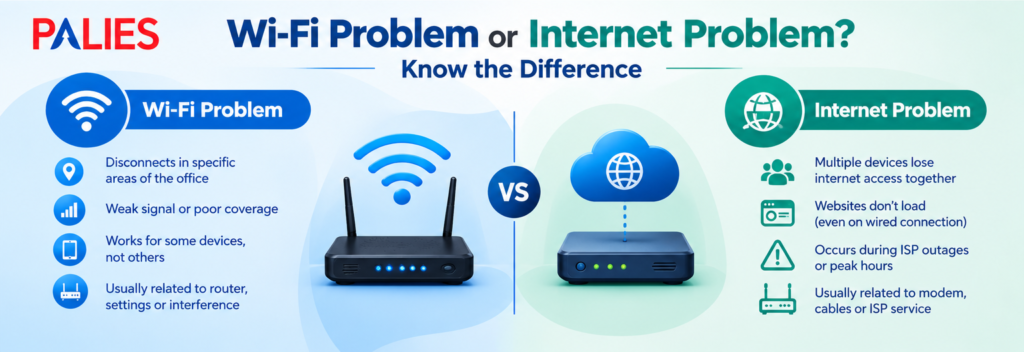
How to Identify Whether the Problem Is Wi-Fi or Your Internet Connection
Not every connectivity issue has the same cause. A few simple checks can help narrow down the problem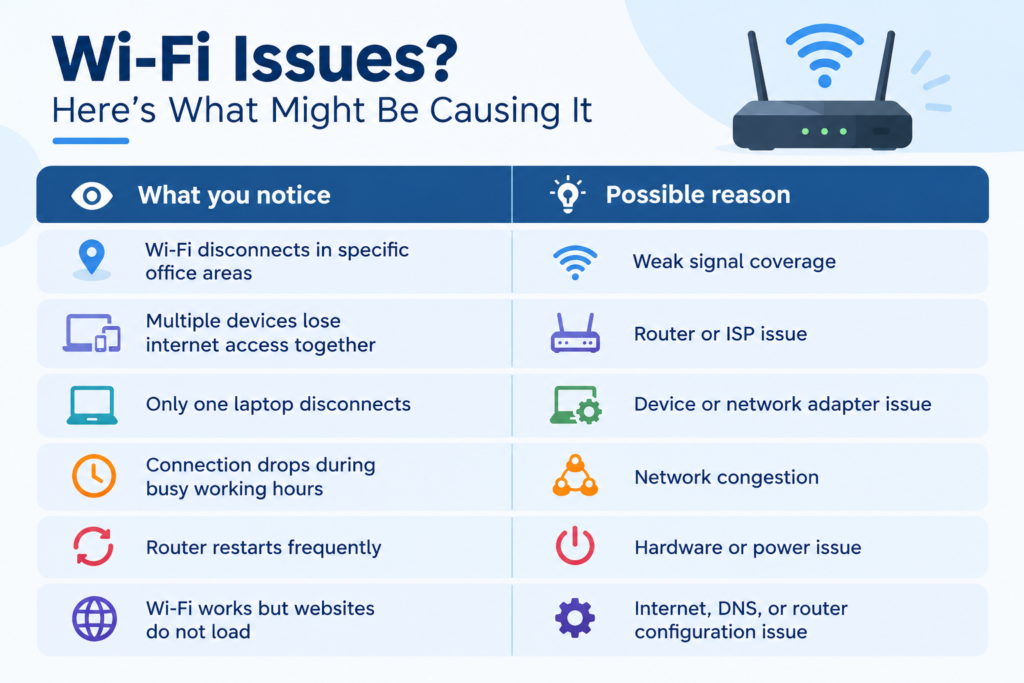
Identifying the pattern before making changes can save time and prevent unnecessary equipment replacement.
When Does Your Office Need Professional Network Support?
Restarting your router may solve a temporary connectivity issue. But if the same problem keeps returning, it is worth checking the complete network setup.
Your business may need professional network support when:
- Wi-Fi disconnects frequently across multiple devices.
- Certain office areas consistently have poor connectivity.
- Network performance drops when more employees connect.
- Online meetings and cloud applications are frequently interrupted.
- Existing routers and access points cannot meet business requirements.
- Network problems continue despite basic troubleshooting.
A professional network assessment can help identify connectivity gaps, equipment limitations, interference, and configuration issues.
Keep Your Office Connected with Reliable Network Support from Palies
A stable office network is more than just an internet connection. It supports employee productivity, business communication, file sharing, and everyday operations.
At Palies, we help businesses with networking requirements, including network setup, configuration, troubleshooting, and IT infrastructure support.
If your office Wi-Fi keeps disconnecting or your network struggles to support daily business activities, the right technical assessment can help identify the underlying problem.