
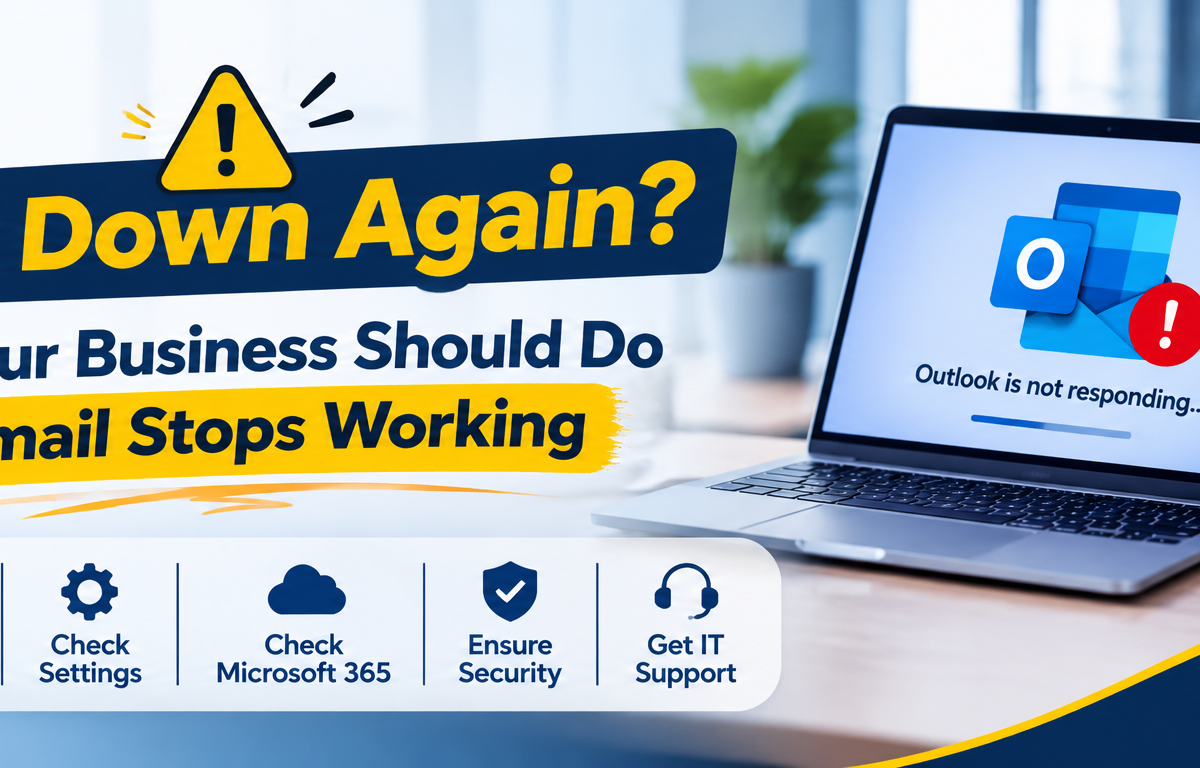
Outlook Down Again? 7 Things Your Business Should Do When Email Stops Working

Imagine reaching your office in the morning, opening Outlook to check important client emails, and suddenly finding that your inbox isn’t loading.

You refresh the page. Nothing happens.

You try accessing Outlook from another device, but the problem continues. Meanwhile, important business conversations, customer responses, meeting updates, and daily tasks are waiting.

Sounds familiar?

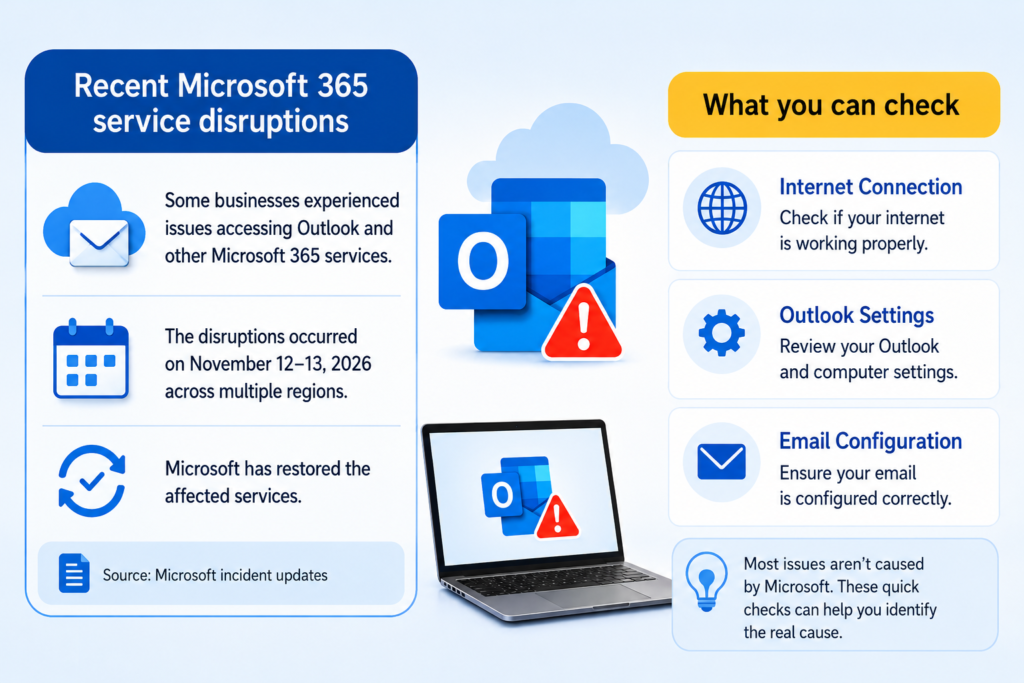
Recent Microsoft 365 service disruptions have highlighted how heavily businesses depend on cloud-based email and collaboration tools. During the November 12–13, 2026 incident, users across multiple regions experienced problems accessing Outlook and other Microsoft 365 services. Microsoft subsequently restored the affected services. Source: Microsoft incident updates. <Cite refs={[“turn955093search0″,”turn955093news18”]}/>

But here’s something important: Not every Outlook problem is caused by Microsoft. Your internet connection, computer settings, email configuration, or network infrastructure could also be responsible.

So, before assuming your email service is down, here are seven things your business should do when Outlook stops working.Microsoft issues
  1. First, Check Whether Outlook Is Down for Everyone

Before changing your computer settings or contacting technical support, find out whether the issue is affecting only you or multiple users.

If several employees cannot access Outlook at the same time, the problem may be related to Microsoft 365 or your organisation’s email environment.

What should you do?

  • Check the official Microsoft 365 Service Health page.
  • Ask other employees whether they are experiencing the same issue.
  • Check for official Microsoft service notifications.
  • Avoid repeatedly changing account settings during a confirmed service outage.

Quick tip: If Microsoft confirms a service disruption, wait for the official recovery updates rather than attempting unnecessary changes to your email configuration.

  1. Check Your Internet Connection Before Blaming Outlook

Sometimes Outlook appears to be down when the actual issue is an unstable internet connection.

If your office internet is slow or frequently disconnecting, Outlook may struggle to load emails, synchronise folders, or connect to the mail server.

What should you do?

  • Open another website to check internet connectivity.
  • Test Outlook using a different network, if possible.
  • Restart your router if you identify a temporary connectivity issue.
  • Try a wired Ethernet connection to check whether Wi-Fi is responsible.

If multiple online applications are also experiencing problems, your office network may need attention.

For persistent connectivity problems, explore Palies Network Installation Services.

  1. Try Accessing Outlook Through a Different Method

Is Outlook not opening on your desktop application?

Before assuming your email account is unavailable, try accessing it through another supported method.

For example, if you normally use the Outlook desktop application, try Outlook on the web.

What should you do?

  • Open Outlook on the web.
  • Sign in using your work email account.
  • Check whether your inbox and recent messages are loading.
  • Compare the experience across another authorised device.

If Outlook on the web works but the desktop application does not, the problem may be related to your local application, profile, or device configuration.

  1. Restart Outlook and Check for Application Issues

Outlook can sometimes stop responding because of temporary application errors, outdated software, add-in conflicts, or profile-related problems.

Simply closing and reopening Outlook may resolve a temporary issue.

What should you do?

  • Close Outlook completely and reopen it.
  • Restart your computer if the application remains unresponsive.
  • Check whether Microsoft Office updates are available.
  • Review recently installed add-ins if the issue started after a software change.
  • Contact your IT administrator before making major account or profile changes.

If the issue continues only on a particular computer, professional desktop troubleshooting may help identify the underlying cause.

Explore Palies Desktop and Computer Support for relevant IT support services.

  1. Check Your Email Account and Storage Settings

Sometimes Outlook problems are related to account authentication, mailbox configuration, or storage limitations.

For example, an expired password, repeated sign-in failure, or mailbox storage restrictions can affect sending and receiving emails.

What should you do?

  • Check whether Outlook is asking you to sign in again.
  • Verify that you are using the correct work account.
  • Check for mailbox storage warnings.
  • Confirm whether emails are stuck in the Outbox.
  • Contact your Microsoft 365 administrator if account access or mailbox configuration needs attention.

Avoid repeatedly entering passwords if you suspect an account security issue. Follow your organisation’s approved account recovery process.

  1. Don’t Let an Email Outage Stop Your Entire Business

This is where many businesses face a bigger challenge.

When email is unavailable, employees may struggle to communicate with clients, coordinate meetings, share documents, and manage important business activities.

But does an email outage really need to stop your entire workflow?

Not necessarily.

Businesses can prepare alternative communication and continuity arrangements before an outage happens.

What should your business consider?

  • Maintain an approved alternative communication channel.
  • Keep essential customer and vendor contact information accessible through authorised systems.
  • Have an internal process for urgent approvals and client communication.
  • Maintain appropriate backups of important business data.
  • Document how employees should respond during major IT disruptions.

Remember, an email service outage and a data-loss incident are not the same thing. Cloud email availability, email retention, and independent data backup should be considered separately.

For additional protection, explore Palies Cloud Backup Solutions.

  1. Contact IT Support If the Problem Continues

If Outlook continues to malfunction even after checking service status, internet connectivity, and application settings, the issue may require technical investigation.

For businesses, repeated email problems should not be treated as isolated incidents without checking the underlying IT environment.

A technical assessment can help identify:

  • Local computer and Outlook application issues.
  • Network connectivity and configuration problems.
  • DNS or authentication-related issues.
  • Mailbox and account configuration problems.
  • Server or infrastructure-related connectivity issues.

When should you seek professional help?

If multiple employees are affected, important business emails are delayed, or connectivity problems continue across devices, involve your IT support team rather than repeatedly changing settings.

Palies provides Remote Support and On-site Services to help businesses investigate and resolve IT-related problems.

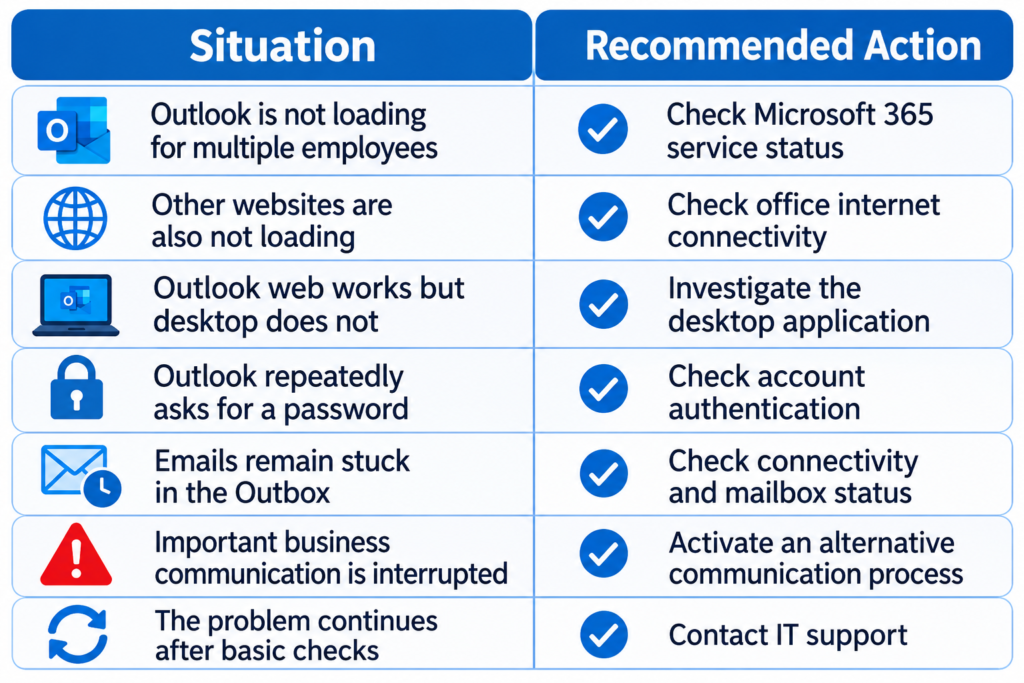
What Should Your Business Do During an Email Outage?

Here’s a quick reference your team can follow whenever Outlook stops working.
Is Your Business Prepared for the Next Email Outage?

Most businesses depend on email every working day. Client communication, quotations, invoices, approvals, project updates, and internal coordination often happen through a single email platform.

But depending entirely on one communication channel without a backup plan can create unnecessary business interruptions.

A practical IT continuity strategy should include:

  • Reliable internet and network infrastructure.
  • Regular computer and server maintenance.
  • Appropriate data backup and recovery arrangements.
  • Secure email and account management practices.
  • Access to technical support when problems occur.

The goal is not simply to restore email access. It is to ensure that your business can continue operating even when an important technology service becomes temporarily unavailable.

Keep Your Business Connected with Palies IT Support

Technology problems rarely come with a convenient warning. Whether it is an Outlook access issue, an unstable office network, a desktop application problem, or a server-related interruption, identifying the actual cause is the first step towards a solution.

At Palies, we support businesses with networking, server maintenance, firewall maintenance, cloud backup, desktop services, and remote and on-site IT support.

Don’t wait for the next technical disruption to affect your daily operations.

Looking for reliable IT support in Coimbatore? Contact Palies to discuss your business IT requirements.

Stop Blaming Your Internet! 7 Reasons Your Office Wi-Fi Keeps Disconnecting

Imagine this. You’re attending an important online meeting, sharing a presentation, or uploading a business file. Suddenly, your Wi-Fi disconnects. You reconnect, continue working, and within a few minutes, it happens again.

Frustrating, isn’t it?

When office Wi-Fi keeps disconnecting, the first thing most people blame is their internet service provider (ISP). But what if the actual problem is inside your office network?

From outdated routers and weak signal coverage to network congestion and incorrect configurations, several factors can interrupt your wireless connection.

A reliable office Wi-Fi connection is essential for smooth communication, cloud access, online meetings, and everyday business operations.

Let’s explore seven common reasons your office Wi-Fi keeps disconnecting and what you can do to fix them.

  1. Your Wi-Fi Router Is Struggling to Handle Multiple Devices

How many devices are connected to your office Wi-Fi right now?

Apart from employee laptops and smartphones, your network may also support printers, CCTV cameras, smart devices, and other connected equipment.

When a router cannot efficiently handle the number of connected devices and their network demands, performance may suffer. You may experience slow speeds, unstable connections, or frequent disconnections.

How to fix it:

  • Check the number of devices connected to your router.
  • Disconnect devices that are no longer in use.
  • Upgrade to a router that supports your office’s connectivity requirements.
  • Consider a business-grade Wi-Fi solution for larger workplaces.
  1. Your Office Has Weak Wi-Fi Signal Coverage

Does Wi-Fi work perfectly near the router but disconnect when you move to another room?

This could be a signal coverage problem.

Walls, furniture, glass partitions, and the distance between devices and the router can weaken wireless signals. As a result, employees in certain areas may experience unstable connectivity.

How to fix it:

  • Position your router in a central, open location.
  • Avoid placing it inside cabinets or behind large objects.
  • Install additional Wi-Fi access points where coverage is poor.
  • Check signal strength across different office areas.

A proper Wi-Fi coverage assessment can help identify areas where additional network equipment is needed.

  1. Your Router Is Overheating or Outdated

Routers operate for long hours, often without interruption. Over time, ageing hardware, poor ventilation, dust accumulation, or technical faults can affect their performance.

An overheating or faulty router may restart unexpectedly, drop connections, or struggle to maintain a stable network.

How to fix it:

  • Keep the router in a well-ventilated area.
  • Ensure its ventilation openings are not blocked.
  • Check the power adapter and network cables.
  • Restart the router when necessary.
  • Consider replacing outdated or faulty equipment.

If your router frequently restarts even after basic troubleshooting, it may need professional inspection.

  1. Too Many Nearby Wi-Fi Networks Are Causing Interference

Your office may not be the only place using wireless internet. Nearby businesses, apartments, and other workplaces may have their own Wi-Fi networks.

When multiple networks operate on overlapping channels, wireless interference can affect connection quality.

Other electronic devices can also contribute to interference, depending on their operating frequency and location.

How to fix it:

  • Check which Wi-Fi channels are being used nearby.
  • Configure your router to use a less congested channel.
  • Use the 5 GHz band where suitable and supported.
  • Position routers away from potential sources of interference.

For larger offices, a professional wireless network assessment can help improve channel selection and coverage.

  1. Your Router Firmware or Network Settings Are Outdated

Sometimes, the problem is not the hardware but the software managing it.

Outdated router firmware may contain bugs, compatibility issues, or security weaknesses. Incorrect network settings can also cause devices to lose their connections.

How to fix it:

  • Check for firmware updates from your router manufacturer.
  • Install updates according to the manufacturer’s instructions.
  • Review Wi-Fi security and network settings.
  • Check whether the router’s configuration supports all connected devices.

Avoid changing advanced network settings without understanding their purpose, especially on a business network.

  1. Your Laptop or Device Is Having Network Problems

What if the office Wi-Fi works perfectly for everyone else but keeps disconnecting on your laptop?

In this situation, the issue may be related to the individual device rather than the office router.

Outdated wireless network drivers, incorrect adapter settings, operating system issues, or power-saving configurations can affect Wi-Fi connectivity.

How to fix it:

  • Restart the affected laptop.
  • Update the wireless network adapter driver.
  • Forget the saved Wi-Fi network and reconnect.
  • Check the network adapter’s power management settings.
  • Test the device on another Wi-Fi network.

If only one or two devices experience the problem, check those devices before replacing office networking equipment.

  1. Your Internet Connection or ISP Is Actually the Problem

Although your office router may be working correctly, interruptions from your internet service provider can still affect connectivity.

Damaged cables, service outages, modem issues, or unstable incoming connections may cause internet access to drop.

How to fix it:

  • Check whether multiple devices are experiencing the same issue.
  • Test the internet using a wired Ethernet connection.
  • Check your ISP’s service status.
  • Inspect the modem and incoming network cables.
  • Contact your internet service provider if the connection continues to drop.

A wired connection test can help determine whether the issue is related to Wi-Fi or the incoming internet connection.

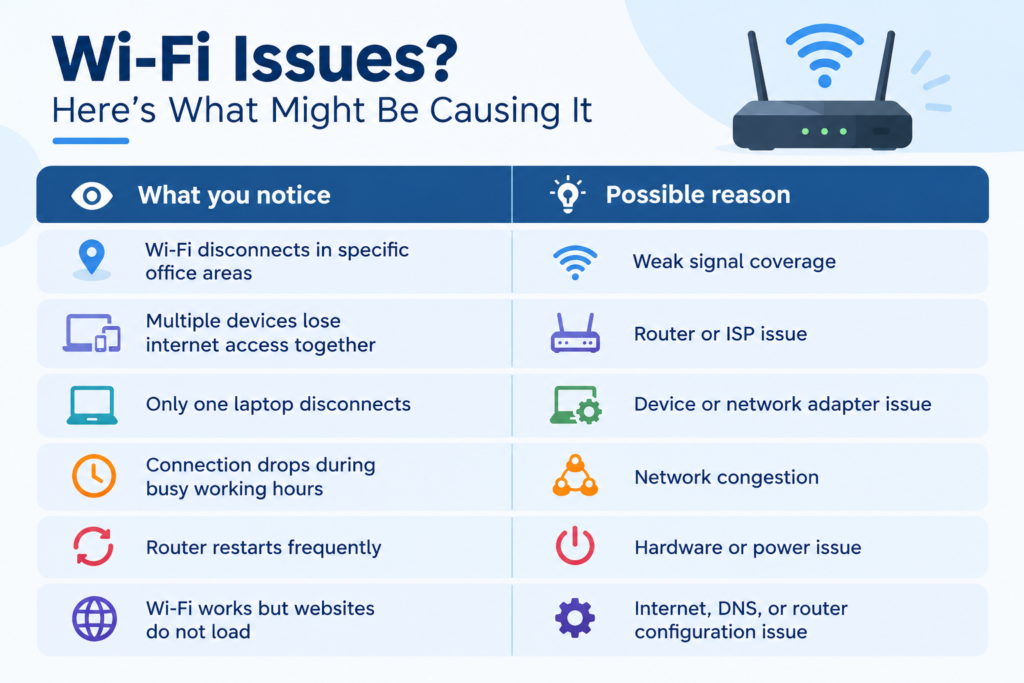
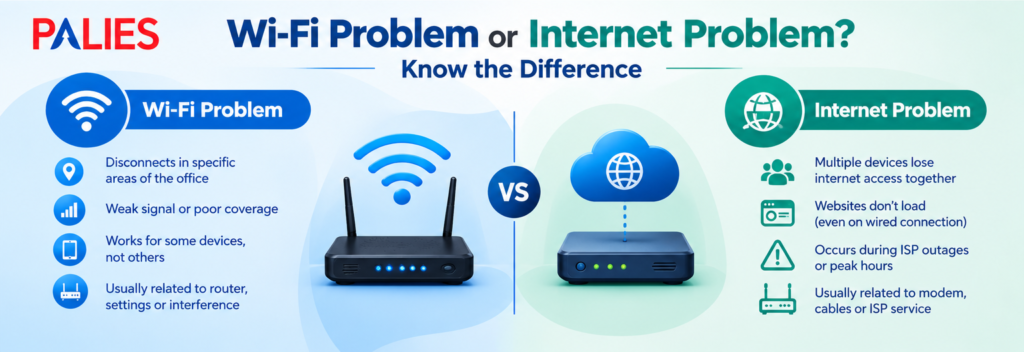
How to Identify Whether the Problem Is Wi-Fi or Your Internet Connection

Not every connectivity issue has the same cause. A few simple checks can help narrow down the problem

Identifying the pattern before making changes can save time and prevent unnecessary equipment replacement.

When Does Your Office Need Professional Network Support?

Restarting your router may solve a temporary connectivity issue. But if the same problem keeps returning, it is worth checking the complete network setup.

Your business may need professional network support when:

  • Wi-Fi disconnects frequently across multiple devices.
  • Certain office areas consistently have poor connectivity.
  • Network performance drops when more employees connect.
  • Online meetings and cloud applications are frequently interrupted.
  • Existing routers and access points cannot meet business requirements.
  • Network problems continue despite basic troubleshooting.

A professional network assessment can help identify connectivity gaps, equipment limitations, interference, and configuration issues.

Keep Your Office Connected with Reliable Network Support from Palies

A stable office network is more than just an internet connection. It supports employee productivity, business communication, file sharing, and everyday operations.

At Palies, we help businesses with networking requirements, including network setup, configuration, troubleshooting, and IT infrastructure support.

If your office Wi-Fi keeps disconnecting or your network struggles to support daily business activities, the right technical assessment can help identify the underlying problem.

Looking for professional network support in Coimbatore? Contact Palies to discuss your office networking requirements.

Dedicated Server vs Cloud Server: Which Is Right for Your Business?

Choosing the right server infrastructure is an important decision for businesses that depend on reliable applications, secure data storage, and uninterrupted operations. Two popular options are dedicated servers and cloud servers. While both provide computing resources for business applications, they differ in performance, scalability, management, and cost.

Understanding these differences can help businesses choose the right solution based on their operational needs, budget, and future growth plans.

What Is a Dedicated Server?

A dedicated server is a physical server allocated to a single business or organisation. All its processing power, memory, and storage resources are dedicated to that organisation, offering greater control over server configuration and performance.

Dedicated servers are suitable for businesses running resource-intensive applications, databases, enterprise software, and workloads that require consistent performance.

Professional dedicated server installation and configuration help ensure that the hardware, operating system, storage, network settings, and security controls are properly configured. Businesses can also benefit from regular server maintenance, monitoring, and technical support to keep their infrastructure running efficiently.

What Is a Cloud Server?

A cloud server is a virtual server that operates on a cloud computing infrastructure. Instead of depending entirely on one physical machine, cloud environments can use pooled resources across multiple physical servers, depending on the provider’s architecture.

Cloud servers are popular among businesses that need flexible computing resources. They allow organisations to increase or decrease processing power, memory, and storage as their requirements change.

With professional cloud server setup and configuration, businesses can deploy applications, manage workloads, and support remote teams without investing in all the physical hardware themselves. Cloud infrastructure can also support backup, disaster recovery, and business continuity strategies when configured appropriately.

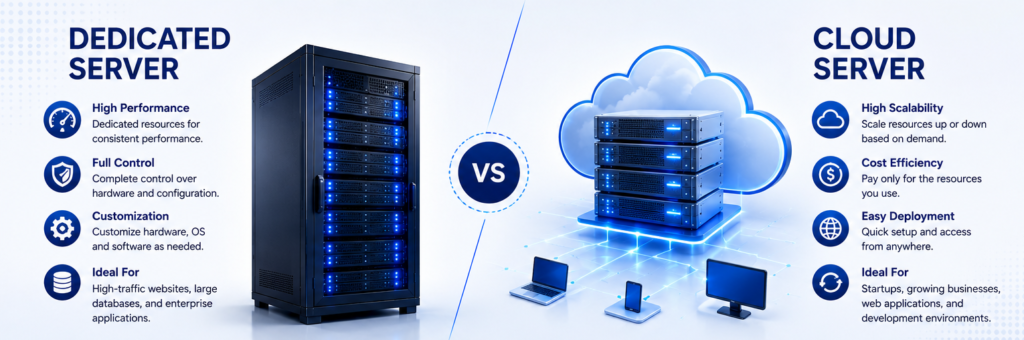
Dedicated Server vs Cloud Server: Key Differences

The main differences between these server solutions relate to resource allocation, scalability, management, and infrastructure costs.

  • Performance: Dedicated servers provide exclusive access to physical hardware resources. Cloud server performance depends on the selected instance, underlying infrastructure, and resource allocation.
  • Scalability: Cloud servers generally allow faster resource adjustments. Dedicated servers may require hardware upgrades or additional servers to accommodate growing workloads.
  • Control: Dedicated servers offer extensive control over hardware and configuration. Cloud servers provide control over virtual resources, subject to the provider’s platform and service limits.
  • Cost: Dedicated servers may involve higher upfront hardware or setup costs when self-hosted. Cloud servers commonly use subscription or usage-based pricing, although ongoing costs can increase with resource consumption.
  • Maintenance: Dedicated server environments may require hardware maintenance and infrastructure management. Cloud providers maintain the underlying infrastructure, while customers may still be responsible for operating systems, applications, updates, and security settings.

When Should You Choose a Dedicated Server?

A dedicated server may be the right choice if your business needs predictable computing performance, specialised hardware configurations, or greater control over its infrastructure.

It can be suitable for enterprise applications, large databases, high-demand workloads, and businesses with specific compliance or data management requirements.

However, proper server installation, firewall configuration, access management, and routine maintenance are essential. Working with experienced server installation services can help businesses establish a stable and secure environment.

When Should You Choose a Cloud Server?

A cloud server is worth considering if your business requires flexibility, rapid deployment, or the ability to adjust resources as demand changes.

It can be useful for growing businesses, development environments, web applications, and organisations supporting distributed teams.

Professional cloud server installation and migration services can help businesses configure workloads, manage data transfers, establish backups, and reduce disruption during the transition. Businesses should also evaluate recurring costs, security responsibilities, backup arrangements, and provider reliability before choosing a cloud platform.

How to Choose the Right Server Solution

Before making a decision, evaluate your current workload, expected growth, security requirements, budget, and available IT expertise.

Consider the following questions:

  • Does your business require consistent access to dedicated hardware resources?
  • Will your computing requirements change frequently?
  • Do you have the team to manage server security and maintenance?
  • What are your backup, recovery, and uptime requirements?
  • Would a physical, cloud, or hybrid infrastructure best support your operations?

A professional IT service provider can assess these requirements and recommend suitable server installation, configuration, migration, and maintenance solutions.

Conclusion

Both dedicated servers and cloud servers offer valuable benefits, but the right choice depends on your business requirements. Dedicated servers provide exclusive physical resources and extensive configuration control, while cloud servers offer flexibility and easier resource scaling.

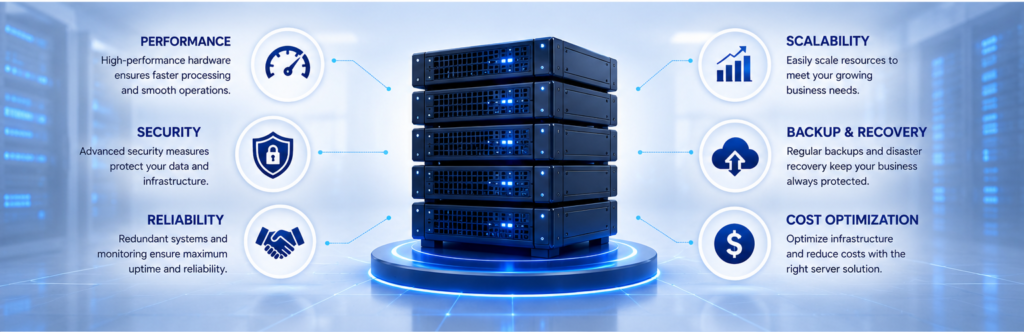
With the right server infrastructure and professional IT support, businesses can improve operational reliability, strengthen data protection, and prepare for future growth.

Palies can help businesses evaluate their infrastructure requirements and identify suitable server installation, server setup, and IT infrastructure support solutions for their operational needs.

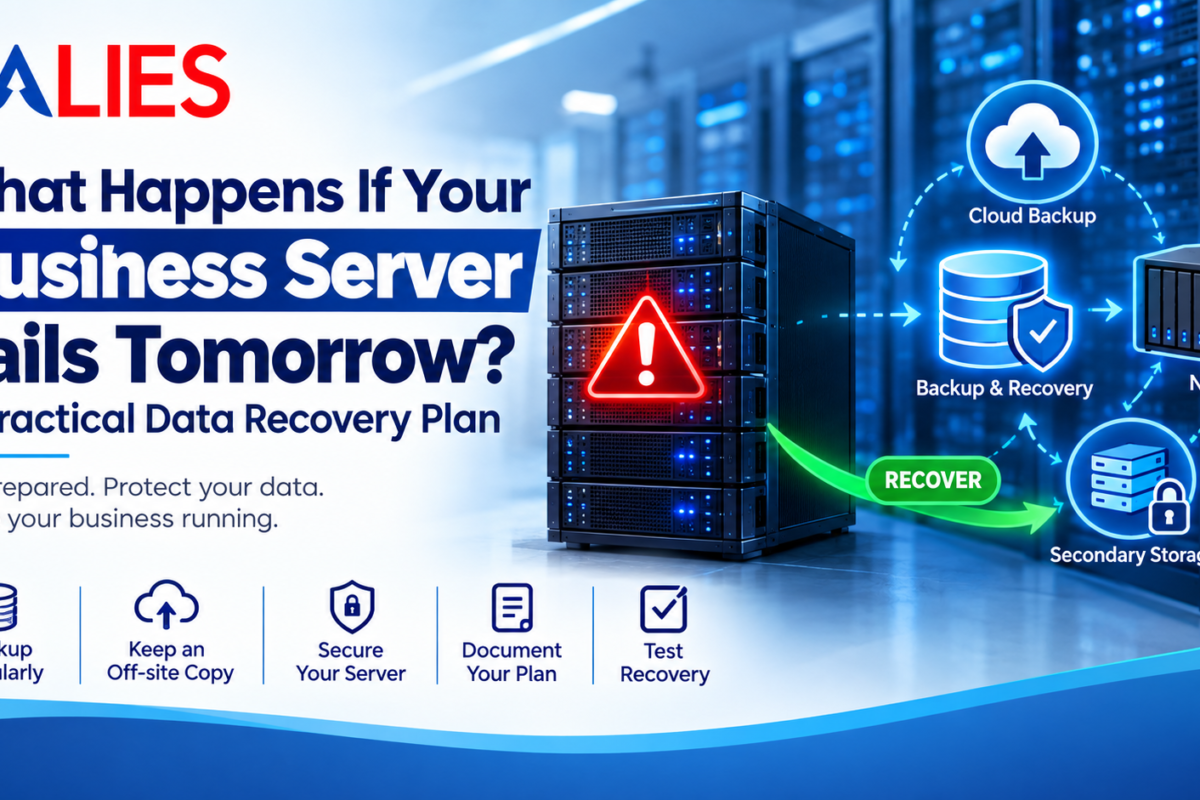
What Happens If Your Business Server Fails Tomorrow? A Practical Data Recovery Plan

Imagine arriving at your office in the morning and discovering that your business server is not responding. Employees cannot access shared files, applications are unavailable, and important business data appears to be inaccessible.

What happens next?

For businesses that depend on servers for everyday operations, a server failure can quickly become more than an IT problem. It can interrupt work, delay customer services, affect productivity, and potentially result in data loss.

The good news is that businesses can prepare for server failure before it happens.

A practical data recovery plan can help reduce downtime and give your business a clear process to follow when something goes wrong.

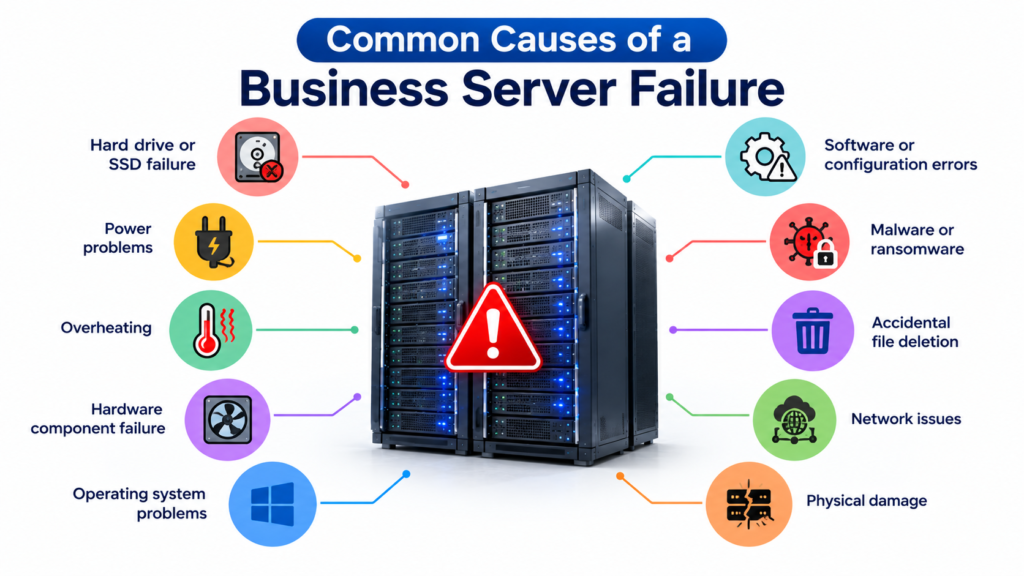
What Can Cause a Business Server to Fail?

Server failure can happen for several reasons. Some problems are sudden, while others develop gradually.

Common causes include:

Even a well-maintained server can eventually experience a hardware or software problem. This is why businesses should plan for failure instead of assuming it will never happen.

What Happens When a Server Fails?

The impact depends on what the server is used for and how critical it is to the business.

A server failure could result in:

  • Employees losing access to shared files
  • Business applications becoming unavailable
  • Delays in daily operations
  • Loss of access to important records
  • Website or application downtime
  • Customer service interruptions
  • Potential data loss

For a small business, even a few hours of downtime can create significant disruption.

The key question is not simply “Can our server fail?” but “What will we do if it does?”

Step 1: Identify Your Critical Business Data

The first part of a recovery plan is understanding what data actually needs protection.

Make a list of critical information such as:

  • Customer records
  • Financial documents
  • Employee information
  • Business applications
  • Project files
  • Databases
  • Contracts and invoices
  • Website files
  • Shared company documents

Not every file has the same level of importance.

Knowing which data needs to be recovered first helps your team prioritize during an emergency.

Step 2: Maintain Regular Backups

A backup gives your business another copy of important information that can be restored if the original data becomes unavailable.

However, simply creating one backup and forgetting about it is not enough.

Businesses should establish a regular backup schedule based on how frequently their data changes.

For example:

A NAS can also be used as part of a business backup strategy. It can provide centralized storage and support automated backup processes.

You can learn more about NAS in our NAS (Network Attached Storage): A Complete Guide for Home & Business.

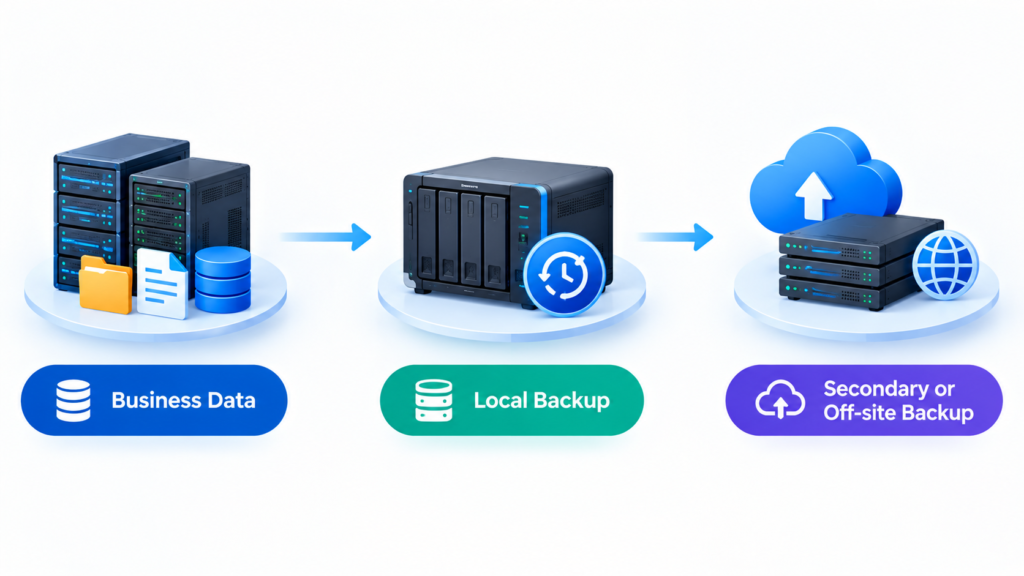
Step 3: Keep a Separate Backup Copy

One of the biggest mistakes businesses can make is keeping everything in the same location.

Imagine a server and its backup are both affected by a fire, power incident, theft, or ransomware attack. Having a backup does not help if that backup is also unavailable.

For important business data, consider maintaining a separate or off-site copy.

Depending on your requirements, this could include:

  • Secondary storage
  • External backup media
  • NAS
  • Cloud backup
  • Off-site infrastructure

The right combination depends on the amount and importance of your data.

Step 4: Decide How Quickly You Need to Recover

Not every system needs to be restored at the same speed.

Ask two important questions:

How much data can the business afford to lose?

How long can the business operate without the system?

These questions help determine your recovery requirements.

For example, a business application that is essential for daily operations may need to be restored within hours, while an older archive may have a lower priority.

Setting recovery priorities before a failure occurs can prevent confusion during an emergency.

Step 5: Protect the Server From Security Threats

Server recovery is not only about hardware failure.

Cybersecurity incidents can also make business data inaccessible. Ransomware, unauthorized access, and compromised accounts can affect servers and connected storage systems.

Businesses should consider:

  • Strong passwords
  • Multi-factor authentication where available
  • User access controls
  • Regular software updates
  • Security monitoring
  • Firewall protection
  • Regular backups

A firewall is an important part of protecting a business network, but it should work alongside other security measures. Learn more in our guide on Firewall: Working System and Purpose.

Step 6: Document the Recovery Process

When a server fails, employees should not have to guess what to do.

Create a simple recovery document that includes:

  • Important server details
  • Backup locations
  • Administrator contacts
  • IT support details
  • Critical applications
  • Recovery priorities
  • Backup schedules
  • Steps for restoring data

Keep a copy of this information somewhere accessible even if the primary server is unavailable.

Step 7: Test Your Backup and Recovery Plan

A backup is only useful if it can actually be restored.

Businesses should periodically test whether important files and applications can be recovered from their backups.

A simple recovery test can help identify problems such as:

  • Incomplete backups
  • Corrupted backup files
  • Missing credentials
  • Incorrect configurations
  • Outdated recovery procedures

Testing gives businesses an opportunity to fix these issues before a real emergency occurs.

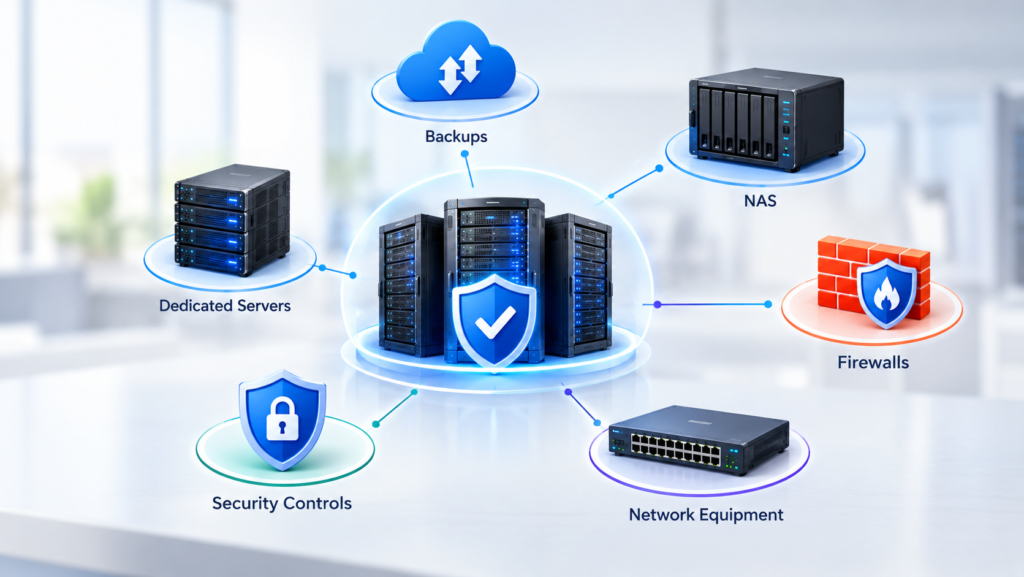
Build a Complete Business Recovery Strategy

A server recovery plan should not exist separately from your overall IT infrastructure.

Servers, NAS systems, firewalls, backups, network equipment, and security controls should work together as part of a broader infrastructure strategy.

Our guide on Why Organizations Need Proper Infrastructure With Dedicated Servers, NAS, and Firewalls explains how these components can support a more reliable business environment.

Final Thoughts

A server failure can happen unexpectedly, but your response does not have to be unplanned.

By identifying critical data, maintaining regular backups, keeping an off-site copy, defining recovery priorities, protecting your network, documenting procedures, and testing your backups, you can reduce the impact of server downtime.

The goal of a business data recovery plan is not to prevent every possible failure. It is to make sure your business knows how to respond when something goes wrong.

The best time to create a recovery plan is before the server fails not after.

Server: Working System and Purpose

       Server-Working System and Purpose

What is a Server?
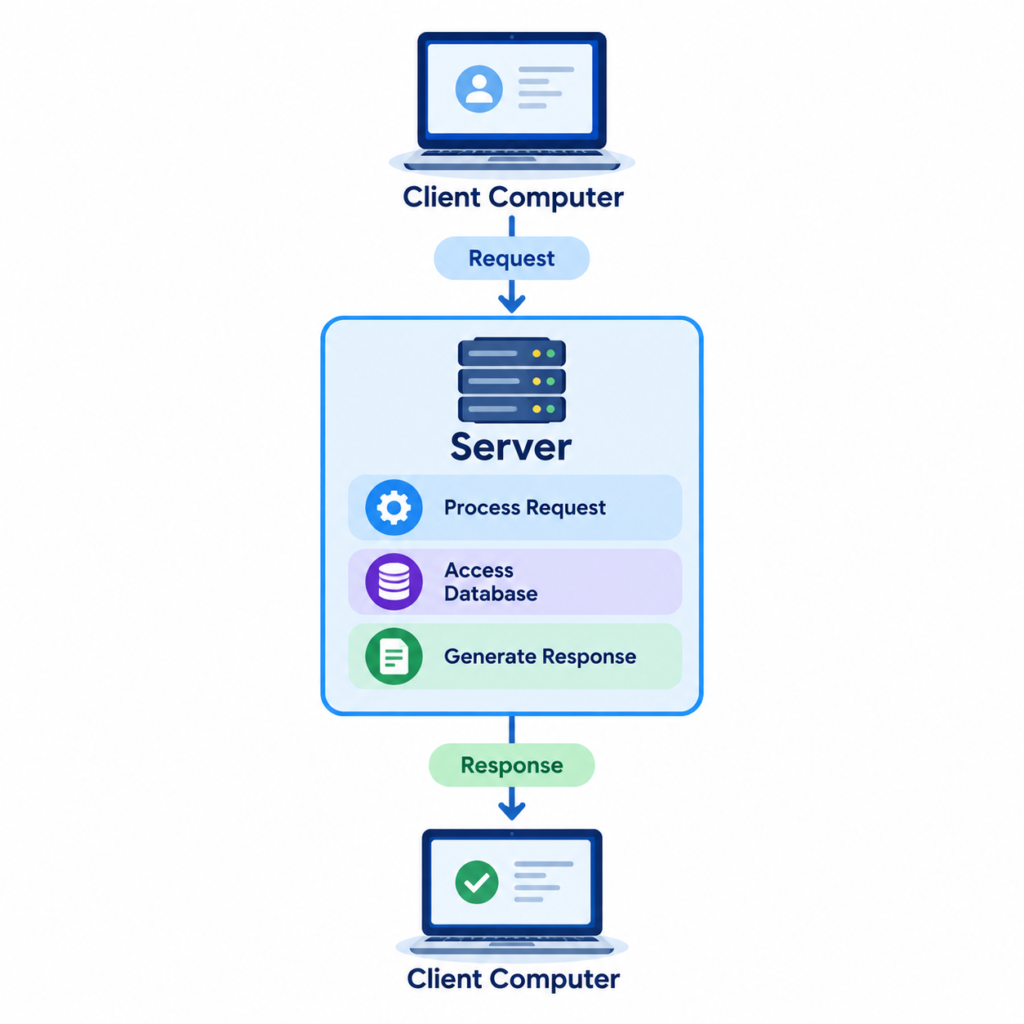
A server is a computer or software system that provides services, resources, or data to other computers (called clients) over a network. Servers are designed to process requests from multiple clients simultaneously and deliver the requested information or services efficiently.

Think of a server as a restaurant kitchen
•    Customers (clients) place orders (requests).
•    The kitchen (server) prepares the food (data or service).
•    The waiter (network) delivers the food back to the customer.

How a Server Works
A server continuously listens for requests from client devices. When a request is received, the server
1.    Receives the client’s request.
2.    Verifies the client’s identity and permissions (if required).
3.    Processes the request.
4.    Retrieves the required data or performs the requested task.
5.    Sends the response back to the client.

Server Working Process
                 

Server Communication Flow
User Opens Website
        │
        ▼
Browser Sends Request
        │
        ▼
Network
        │
        ▼
Web Server
        │
        ▼
Application Server
        │
        ▼
Database Server
        │
        ▼
Requested Data Returned
        │
        ▼
Web Page Displayed

Components of a Server:

Hardware Components
•    High-performance CPU
•    Large RAM
•    Multiple HDDs or SSDs
•    RAID storage
•    Network Interface Card (NIC)
•    Power Supply (often redundant)
•    Cooling system

Software Components
•    Server Operating System
•    Web server software
•    Database software
•    Security software
•    Backup software
•    Monitoring tools

Types of Servers
1. File Server
Stores and manages files for multiple users.
Purpose
•    Centralized file storage
•    File sharing
•    Data backup
Examples:
•    Windows File Server
•    Samba Server

2. Web Server
Hosts websites and delivers web pages to users.
Examples:
•    Apache HTTP Server
•    Nginx
•    Microsoft IIS
Uses
•    Business websites
•    E-commerce platforms
•    Blogs
•    Web applications

3. Database Server
Stores, retrieves, and manages databases.
Examples
•    MySQL
•    PostgreSQL
•    Microsoft SQL Server
•    Oracle Database
Uses
•    Banking systems
•    Hospital systems
•    ERP applications

4. Mail Server
Handles email communication.
Functions
•    Send emails
•    Receive emails
•    Store mailboxes
•    Spam filtering
Examples
•    Microsoft Exchange Server
•    Postfix
•    Zimbra

5. Application Server
Runs business applications and provides services to users.
Examples
•    Apache Tomcat
•    JBoss
•    WebLogic

6. DNS Server
Converts domain names into IP addresses.
Example
www.example.com
       │
       ▼
192.168.1.10

7. DHCP Server
Automatically assigns IP addresses to devices on the network.
Benefits
•    Simplifies network management
•    Reduces IP conflicts

8. Proxy Server
Acts as an intermediary between clients and the Internet.
Benefits
•    Improves security
•    Filters web traffic
•    Caches content for faster access

9. Print Server
Manages printers shared across a network.
Benefits
•    Centralized printer management
•    Shared access for multiple users

10. Virtual Server
A software-based server running on a physical host using virtualization technology.
Benefits
•    Efficient resource utilization
•    Easy scalability
•    Lower hardware costs

Purpose of a Server
1. Store Data
Provides centralized storage for files, databases, and applications.

2. Share Resources
Allows multiple users to access:
•    Files
•    Printers
•    Applications
•    Internet connections

3. Host Applications
Runs enterprise applications such as:
•    ERP
•    CRM
•    HR Management Systems

4. Manage Network Services
Provides services such as:
•    DNS
•    DHCP
•    Authentication
•    Email

5. Website Hosting
Hosts websites and web applications accessible via the Internet.

6. User Authentication
Verifies users before granting access to resources.
Examples
•    Active Directory
•    LDAP

7. Data Backup
Stores scheduled backups to protect against data loss.

8. Remote Access
Allows users to securely access systems and files from remote locations.

Advantages of Servers
•    Centralized data management
•    Resource sharing
•    High availability
•    Improved security
•    Simplified backups
•    Scalable to support business growth
•    Supports many users simultaneously

Limitations of Servers
•    Higher initial cost
•    Requires skilled administration
•    Hardware failures can affect services if redundancy is not in place
•    Requires regular maintenance and updates
•    Power and cooling requirements

Server vs Personal Computer

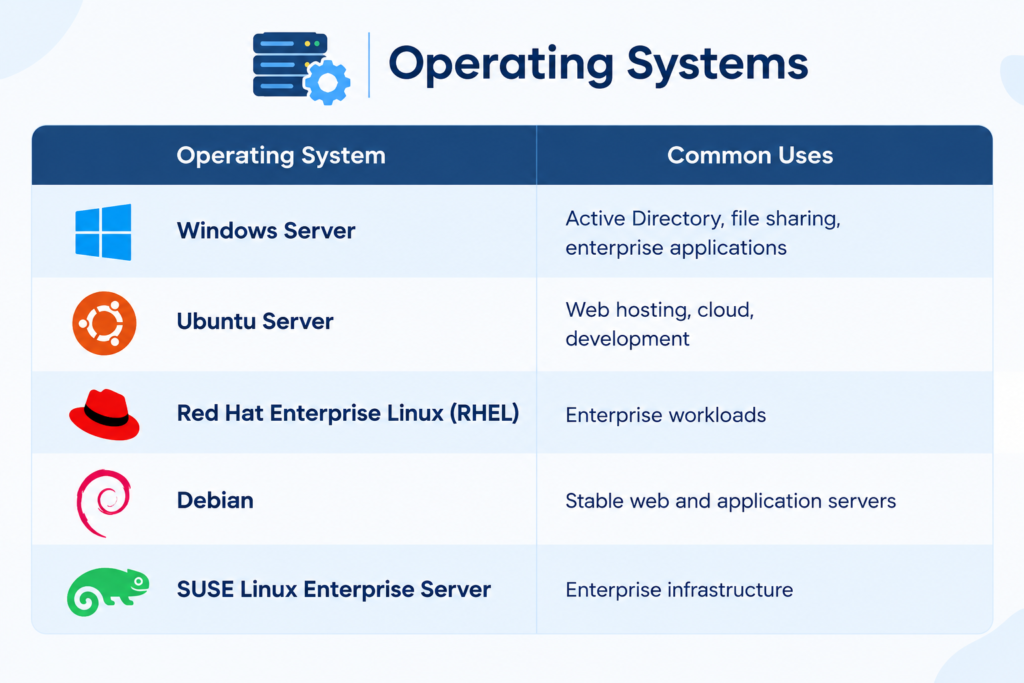
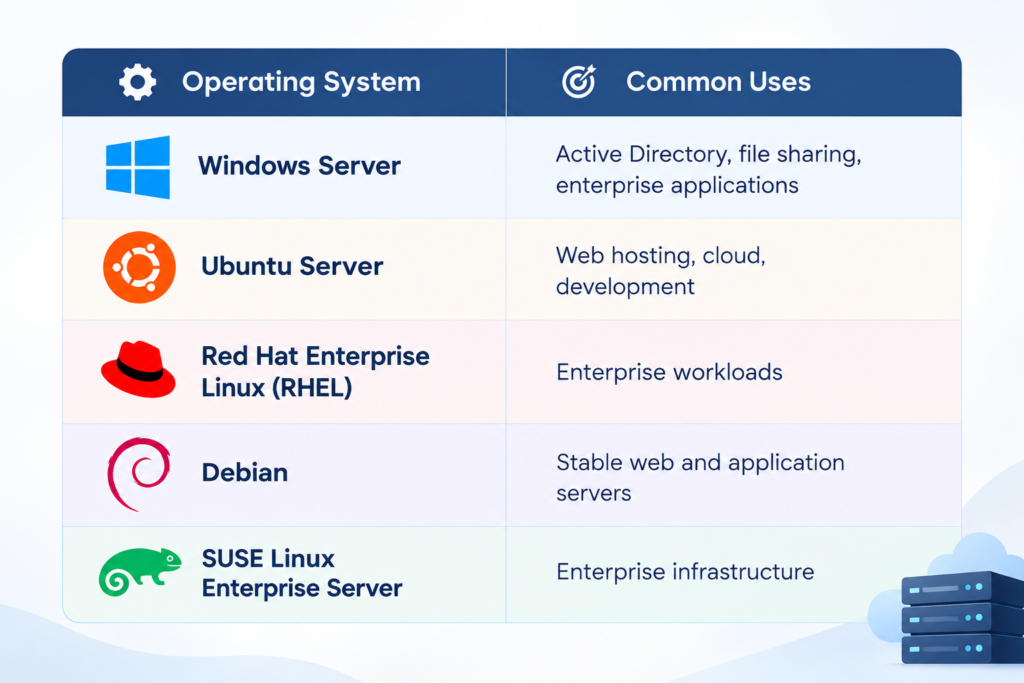
Common Server Operating Systems


Best Practices
•    Keep server software updated.
•    Use RAID for storage redundancy.
•    Perform regular backups.
•    Implement strong access controls and multi-factor authentication (MFA).
•    Monitor server performance and health.
•    Use firewalls and antivirus protection.
•    Restrict unnecessary services and ports.
•    Document configurations and maintenance procedures.

Conclusion
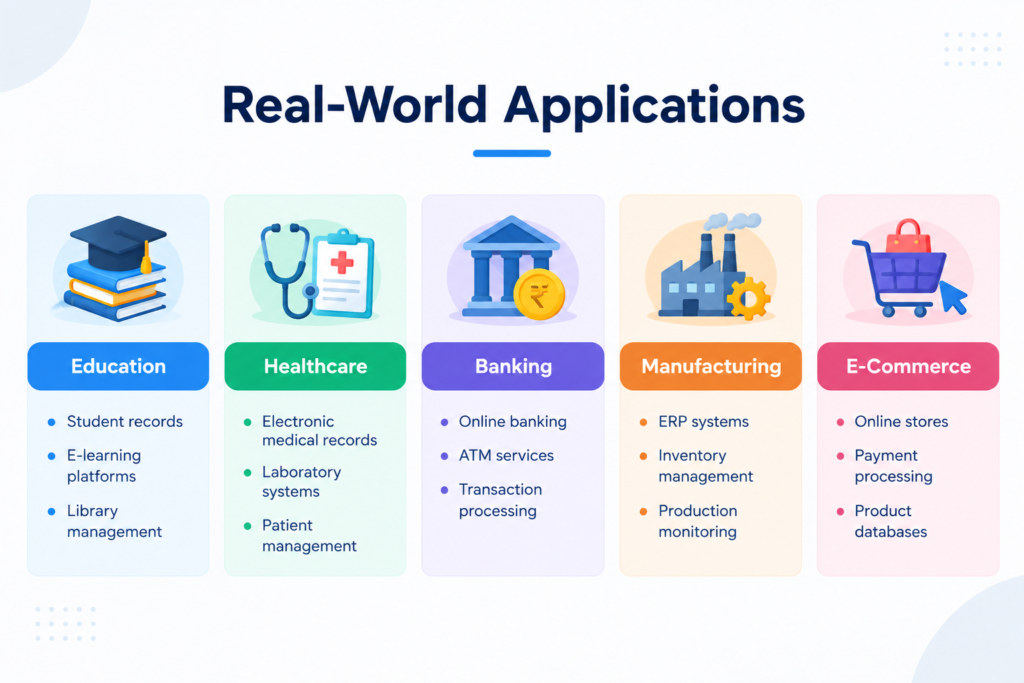
A server is a critical component of modern IT infrastructure that provides services, applications, storage, and resources to client devices across a network. Servers enable centralized management, secure resource sharing, and continuous availability for businesses, educational institutions, healthcare organizations, and cloud environments. When combined with proper security, backups, monitoring, and maintenance, servers form the backbone of reliable and scalable IT systems.