
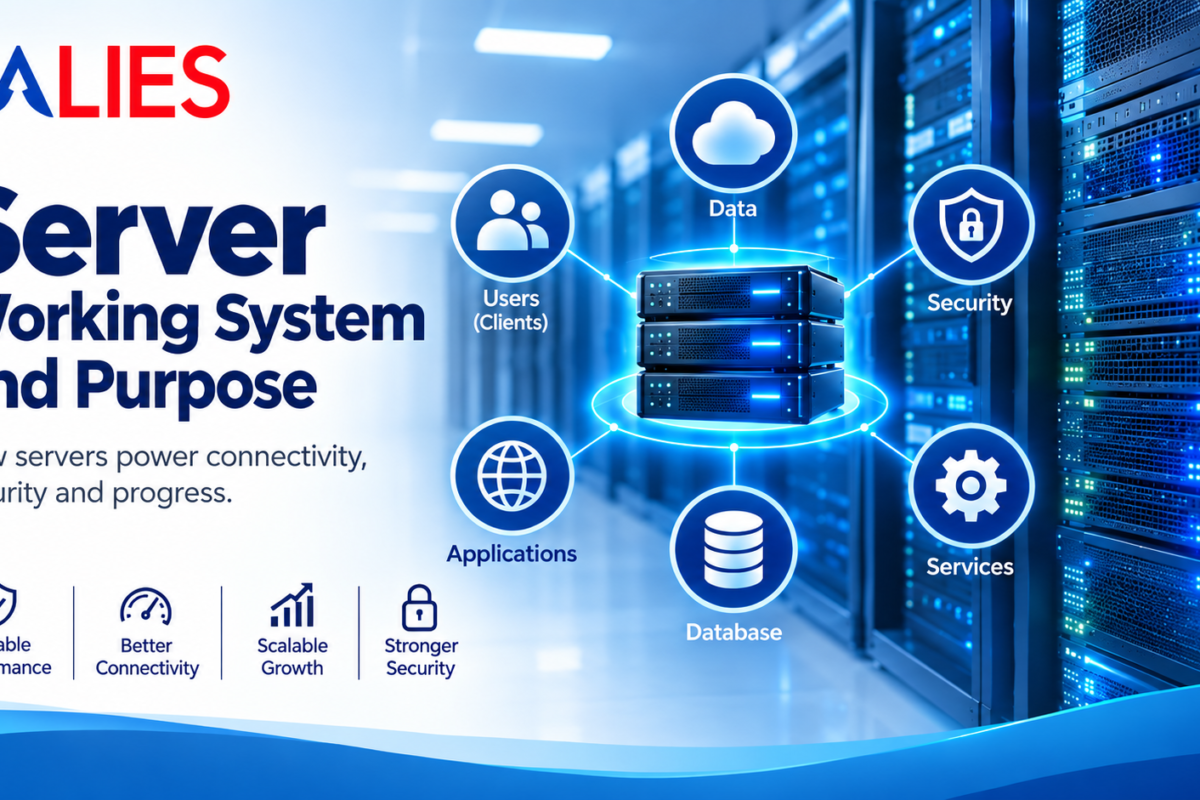
Firewall: Working System and Purpose

Firewall: Working System and Purpose

What is a Firewall?

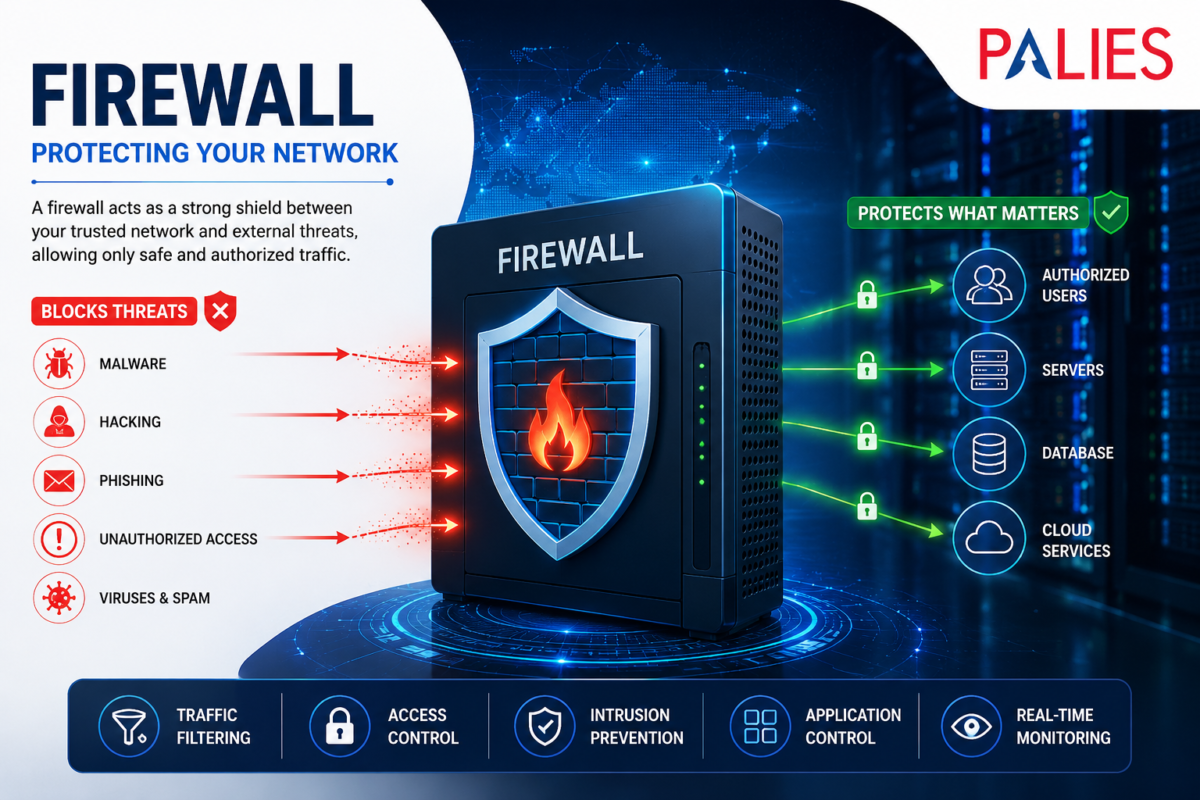
A firewall is a network security device or software application that monitors, filters, and controls incoming and outgoing network traffic based on predefined security rules. It acts as a barrier between a trusted internal network and untrusted external networks, such as the Internet, protecting systems from unauthorized access, cyberattacks, and malicious traffic.

Think of a firewall as a security guard at the entrance of a building. It checks everyone entering or leaving and allows only authorized people while blocking intruders.

How a Firewall Works

A firewall examines every data packet traveling through a network and decides whether to:

  • Allow the traffic
  • Block the traffic
  • Log the activity for monitoring
  • Alert administrators if suspicious activity is detected

The firewall uses security policies and rules based on factors such as

  • Source IP address
  • Destination IP address
  • Port number
  • Protocol (TCP, UDP, ICMP)
  • Application type
  • Website or domain
  • User identity

Packet Filtering Process

Incoming Data Packet

         │

         ▼

 Check Firewall Rules

         │

  ┌──────┴──────┐

  │             │

Allowed?      Blocked?

  │             │

  ▼             ▼

Send to      Discard Packet

Destination   Generate Log

Types of Firewalls

  1. Packet Filtering Firewall
  • Inspects individual data packets.
  • Checks IP addresses, ports, and protocols.
  • Fast and efficient.
  • Limited protection against advanced attacks.

Advantages

  • High performance
  • Low cost
  • Easy implementation

Disadvantages

  • Cannot inspect packet contents deeply
  • Vulnerable to sophisticated attacks
  1. Stateful Inspection Firewall

Maintains information about active network connections.

Instead of checking every packet independently, it tracks the entire communication session.

Features

  • Better security
  • Faster than application filtering
  • Detects suspicious connections
  1. Proxy Firewall

Acts as an intermediary between users and the Internet.

Instead of users connecting directly to websites, they communicate through the firewall.

Benefits

  • Hides internal IP addresses
  • Prevents direct communication
  • Filters web traffic
  1. Next-Generation Firewall (NGFW)

An advanced firewall combining traditional filtering with modern security features.

Features

  • Deep Packet Inspection (DPI)
  • Intrusion Prevention System (IPS)
  • Antivirus scanning
  • Malware detection
  • Application awareness
  • URL filtering
  • SSL/TLS inspection
  1. Cloud Firewall

A firewall hosted in the cloud to protect cloud-based applications and services.

Suitable for:

  • Cloud computing
  • Hybrid networks
  • Remote workforce

Firewall Deployment Types

Hardware Firewall

A dedicated physical device installed between the Internet and the internal network.

Suitable for

  • Enterprises
  • Data centers
  • Offices
  • Schools

Software Firewall

Installed directly on computers or servers.

Examples:

  • Windows Defender Firewall
  • Linux iptables/nftables
  • macOS Firewall


Cloud Firewall

Protects cloud resources without requiring physical hardware.

Purpose of a Firewall

  1. Prevent Unauthorized Access

Blocks hackers from accessing private networks.

  1. Protect Sensitive Data

Safeguards confidential information such as

  • Customer records
  • Financial data
  • Medical records
  • Employee information
  1. Block Malware

Stops malicious software including:

  • Viruses
  • Worms
  • Trojans
  • Spyware
  • Ransomware


  1. Monitor Network Traffic

Logs all network activity to help administrators identify suspicious behavior.

  1. Control Internet Usage

Organizations can restrict access to

  • Social media
  • Gaming websites
  • Streaming platforms
  • Unauthorized applications
  1. Prevent Cyber Attacks

Helps defend against

  • Denial-of-Service (DoS)
  • Distributed Denial-of-Service (DDoS)
  • Port scanning
  • Unauthorized login attempts
  • Exploitation attempts


  1. Enforce Security Policies

Ensures users follow organisational security rules regarding network access.


Advantages of Firewalls

  • Protects against unauthorised access
  • Reduces cyberattack risks
  • Controls network traffic
  • Supports compliance with security standards
  • Provides activity logging and monitoring
  • Improves network security
  • Protects sensitive business information

Limitations of Firewalls

  • Cannot stop attacks that bypass network controls (e.g., infected USB drives).
  • May not prevent insider threats.
  • Cannot protect against weak passwords on its own.
  • Requires regular updates and proper configuration.
  • Advanced attacks may require additional security tools.

Firewall vs Antivirus

Feature

Firewall

Antivirus

Primary Function

Filters network traffic

Detects and removes malware

Protects Against

Unauthorized network access

Viruses, worms, ransomware

Monitors

Incoming and outgoing connections

Files, applications, and system memory

Deployment

Network or host level

Installed on individual devices

Purpose

Prevent unauthorised communication

Detect and eliminate malicious software

Common Firewall Use Cases

Home Networks

  • Protect home Wi-Fi
  • Secure smart devices
  • Block unauthorized access

Small Businesses

  • Secure office networks
  • Protect customer data
  • Enable secure remote access

Enterprises

  • Protect large corporate networks
  • Segment departments
  • Secure data centers
  • Monitor thousands of users

Cloud Environments

  • Protect virtual machines
  • Secure cloud applications
  • Control access to cloud resources

Best Practices

  • Enable the firewall on all devices.
  • Keep firewall software and firmware updated.
  • Use the principle of least privilege when creating rules.
  • Review firewall logs regularly.
  • Combine firewalls with antivirus, intrusion detection/prevention systems (IDS/IPS), and multi-factor authentication (MFA).
  • Remove unused or outdated firewall rules.

Conclusion

A firewall is a fundamental component of cybersecurity that protects networks by inspecting and controlling traffic according to security policies. Whether deployed as hardware, software, or a cloud service, firewalls help prevent unauthorized access, reduce cyber risks, enforce organizational security policies, and protect valuable data. While essential, they are most effective when used as part of a layered security strategy that includes antivirus, endpoint protection, regular updates, backups, and user awareness training.


NAS (Network Attached Storage): A Complete Guide for Home & Business

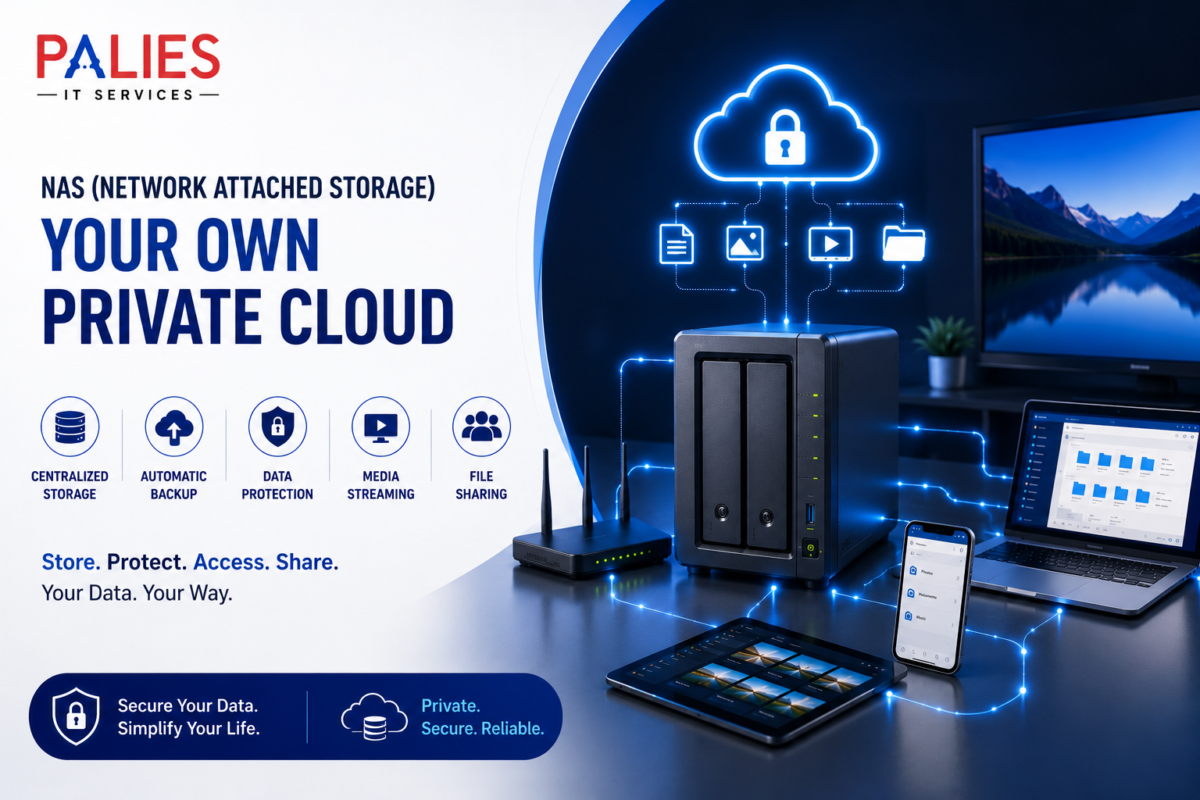
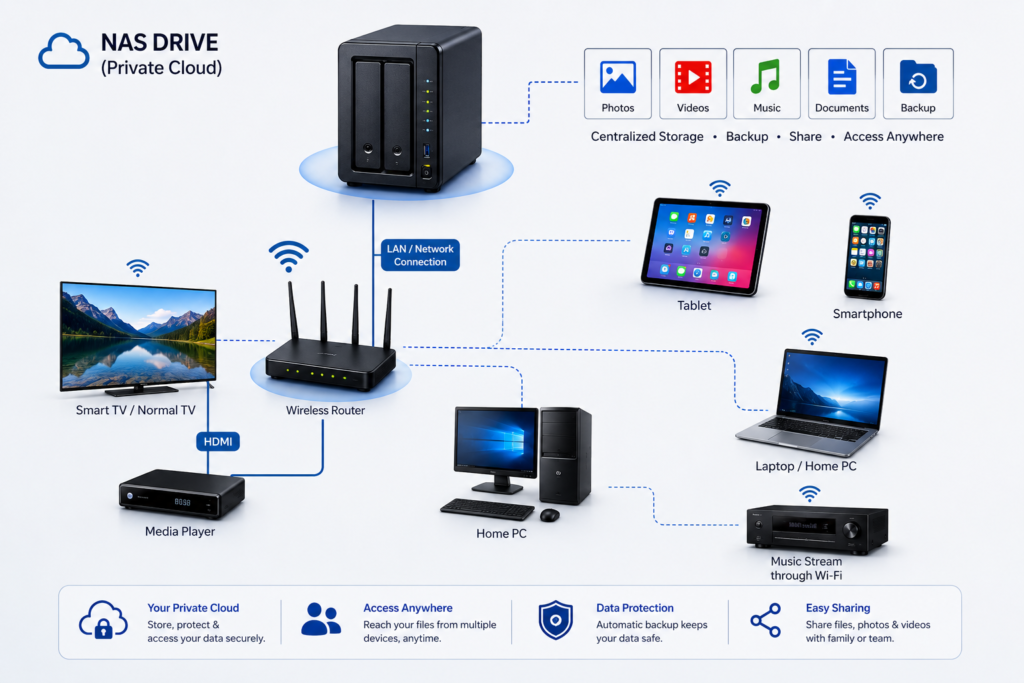
A NAS (Network Attached Storage) box is a dedicated storage device that connects to your home or office network, allowing multiple devices to store, access, and share files from one central location.

Think of it as your own private cloud. Instead of storing files on Google Drive, OneDrive, or Dropbox, you store them on a device that you own and control.

How a NAS Works

A NAS box contains

  • One or more hard drives (HDDs) or SSDs
  • A processor and memory
  • A network (Ethernet) port
  • An operating system designed for file sharing

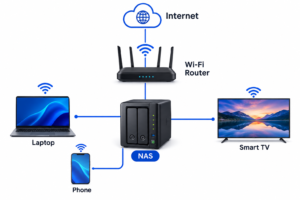
It connects to your Wi-Fi router via an Ethernet cable.

Any authorized device on your network—such as a laptop, desktop, smartphone, smart TV, or tablet—can access the files stored on the NAS.

Example:

Benefits of a NAS Box

1. Centralized Storage

Instead of keeping files scattered across multiple computers and external drives, everything is stored in one place.

Good for:

  • Photos
  • Videos
  • Documents
  • Music
  • Work files

2. Automatic Backup

Most NAS devices can automatically back up

  • Windows PCs
  • Macs
  • Android phones
  • iPhones

If your computer crashes, your files remain safe on the NAS.

3. Access Files Anywhere

Many NAS systems let you securely access your files over the internet.

This means you can:

  • Download documents while traveling
  • View photos remotely
  • Share files with family or coworkers

4. Private Cloud Storage

Unlike public cloud services:

  • You own the hardware.
  • You control your data.
  • There are no monthly storage fees (beyond the initial purchase and any electricity costs).

5. Data Protection with RAID

Most NAS devices support RAID (Redundant Array of Independent Disks).

For example:

  • Two 4 TB drives in RAID 1 provide about 4 TB of usable storage while mirroring the data. If one drive fails, your data remains available on the other drive.

Note: RAID improves availability but is not a substitute for backups. Important data should still be backed up elsewhere.

6. Media Streaming

A NAS can act as a home media server.

You can stream:

  • Movies
  • TV shows
  • Music
  • Photos

to:

  • Smart TVs
  • Phones
  • Tablets
  • Computers

7. File Sharing

Create separate accounts for:

  • Family members
  • Employees
  • Students

Each user can have different permissions.

8. Surveillance Storage

Many NAS devices support IP security cameras.

They can:

  • Record footage
  • Store videos
  • Send motion alerts

without requiring a separate computer to be running.

9. Run Applications

Some NAS models can host applications such as:

  • Personal photo management
  • Note-taking tools
  • Password managers
  • Docker containers
  • Development environments
  • Home automation services

10. Energy Efficient

A NAS typically consumes much less power than leaving a desktop computer running all day to serve files.

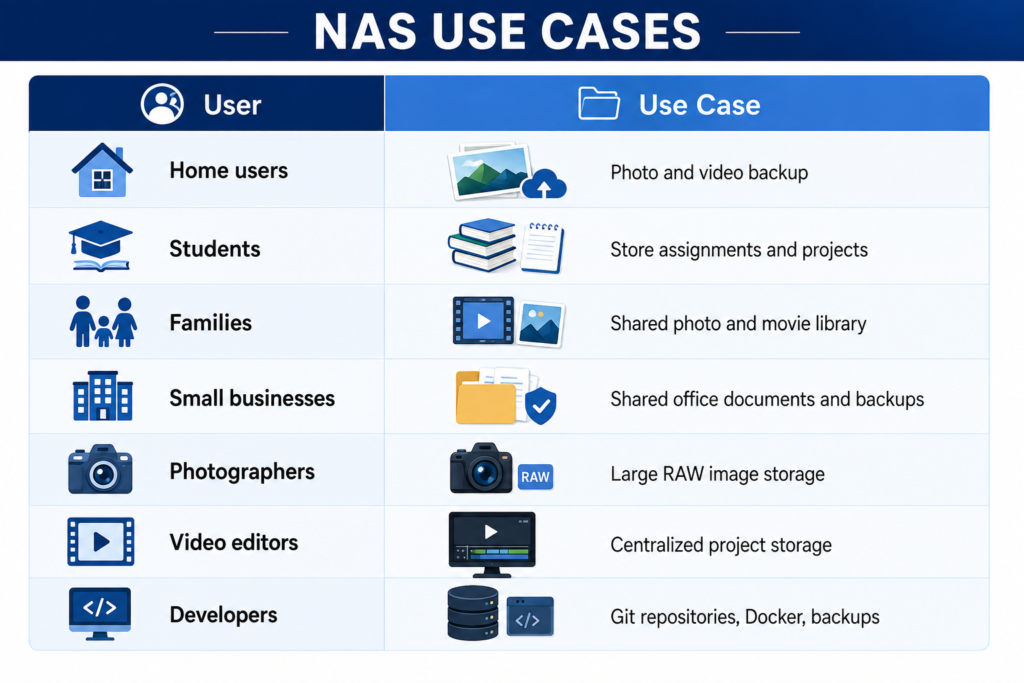
Common Uses


NAS vs External Hard Drive

Feature

NAS

External Drive

Network access

Multiple users

Automatic backup

Limited

Remote access

RAID support

Usually no

File sharing

Limited

Media server

Popular NAS Brands


Some well-known manufacturers include:

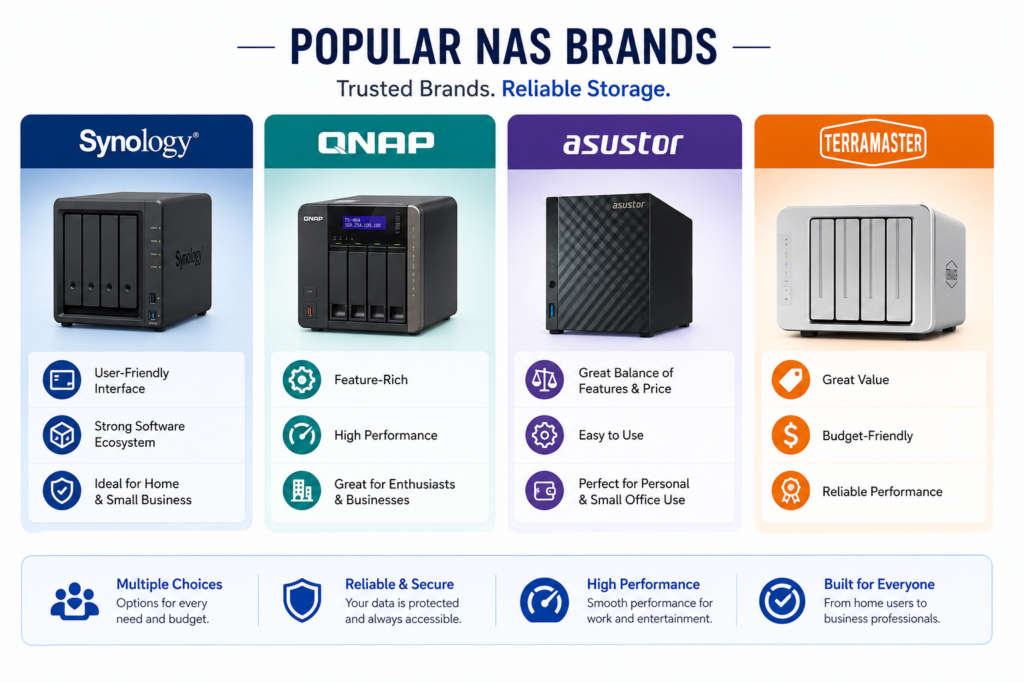
  • Synology – Known for a polished, beginner-friendly interface and strong software ecosystem.
  • QNAP – Offers extensive features and good performance for enthusiasts and businesses.
  • ASUSTOR – Balances features and price.
  • TerraMaster – Often provides good value for budget-conscious users.

Who Should Buy a NAS?

A NAS is a good fit if you

  • Have lots of photos or videos.
  • Need automatic backups for multiple devices.
  • Want your own private cloud.
  • Share files with family or coworkers.
  • Stream media throughout your home.
  • Want to reduce dependence on subscription cloud storage.

If you only need occasional extra storage for one computer, an external USB drive is usually simpler and less expensive.

Potential Drawbacks

  • Higher upfront cost than an external drive.
  • Initial setup can take some time.
  • Requires at least one hard drive (often purchased separately).
  • Remote access should be secured with strong passwords and, ideally, multi-factor authentication.
  • RAID is not a replacement for a proper backup strategy.

    Example Home Setup

A family with:

  • 2 laptops
  • 3 smartphones
  • 1 smart TV
  • 1 tablet

could use a 2-bay NAS with mirrored drives to

  • Automatically back up everyone’s photos.
  • Store family videos in one place.
  • Stream movies to the TV.
  • Access documents while away from home.
  • Share albums securely with relatives.

For many households and small offices, a NAS provides a practical balance of convenience, control, and data protection without relying entirely on third-party cloud services.