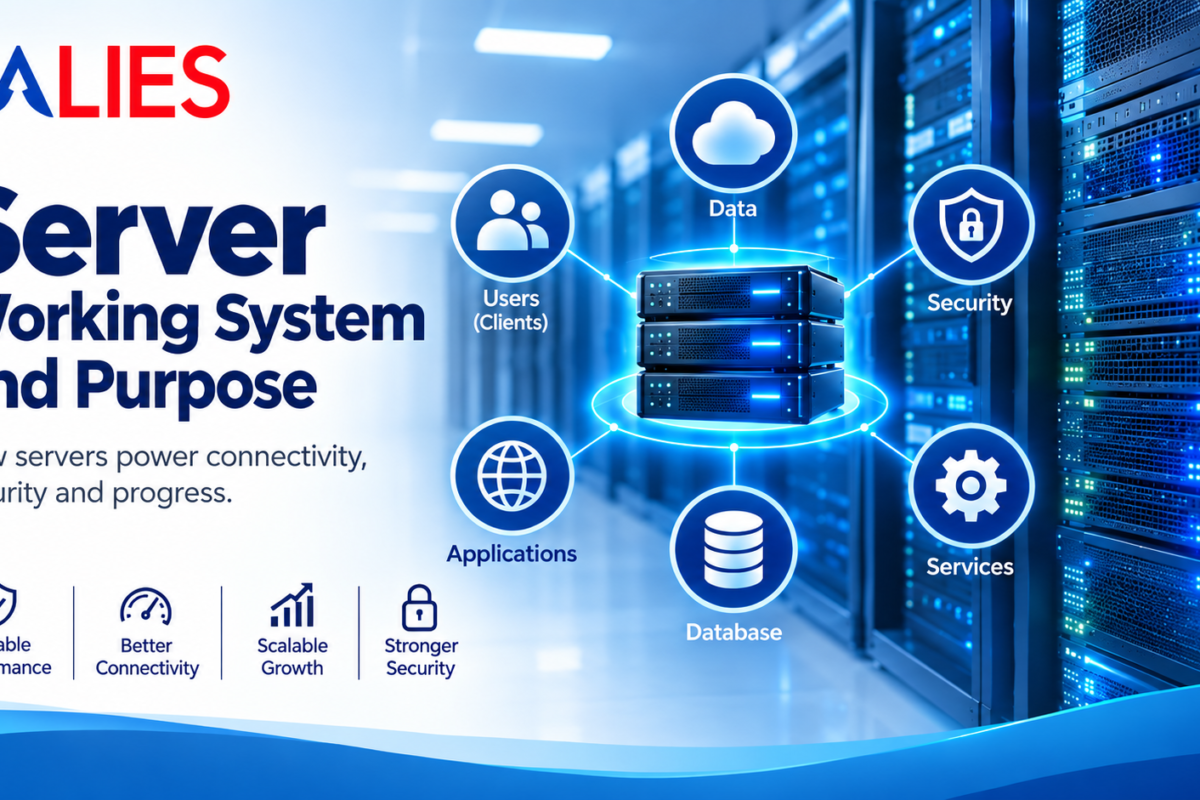

Firewall: Working System and Purpose

Firewall: Working System and Purpose

What is a Firewall?

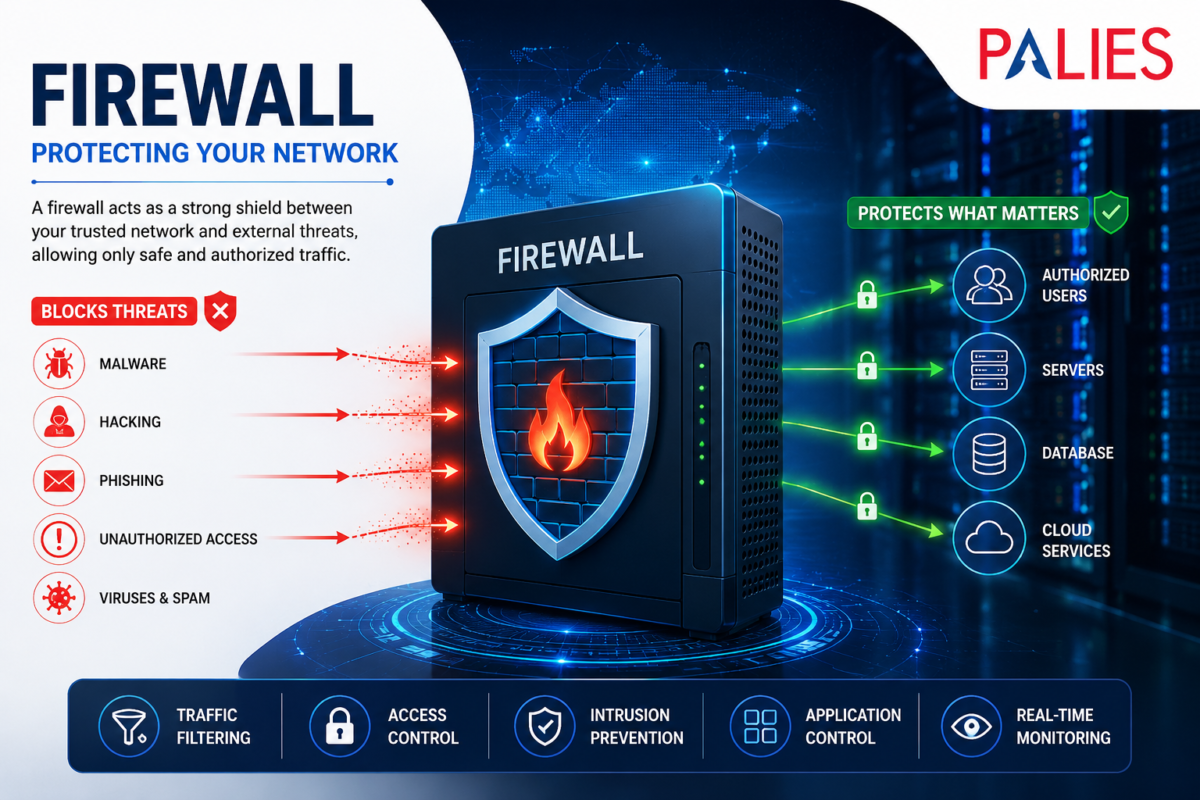
A firewall is a network security device or software application that monitors, filters, and controls incoming and outgoing network traffic based on predefined security rules. It acts as a barrier between a trusted internal network and untrusted external networks, such as the Internet, protecting systems from unauthorized access, cyberattacks, and malicious traffic.

Think of a firewall as a security guard at the entrance of a building. It checks everyone entering or leaving and allows only authorized people while blocking intruders.

How a Firewall Works

A firewall examines every data packet traveling through a network and decides whether to:

  • Allow the traffic
  • Block the traffic
  • Log the activity for monitoring
  • Alert administrators if suspicious activity is detected

The firewall uses security policies and rules based on factors such as

  • Source IP address
  • Destination IP address
  • Port number
  • Protocol (TCP, UDP, ICMP)
  • Application type
  • Website or domain
  • User identity

Packet Filtering Process

Incoming Data Packet

         │

         ▼

 Check Firewall Rules

         │

  ┌──────┴──────┐

  │             │

Allowed?      Blocked?

  │             │

  ▼             ▼

Send to      Discard Packet

Destination   Generate Log

Types of Firewalls

  1. Packet Filtering Firewall
  • Inspects individual data packets.
  • Checks IP addresses, ports, and protocols.
  • Fast and efficient.
  • Limited protection against advanced attacks.

Advantages

  • High performance
  • Low cost
  • Easy implementation

Disadvantages

  • Cannot inspect packet contents deeply
  • Vulnerable to sophisticated attacks
  1. Stateful Inspection Firewall

Maintains information about active network connections.

Instead of checking every packet independently, it tracks the entire communication session.

Features

  • Better security
  • Faster than application filtering
  • Detects suspicious connections
  1. Proxy Firewall

Acts as an intermediary between users and the Internet.

Instead of users connecting directly to websites, they communicate through the firewall.

Benefits

  • Hides internal IP addresses
  • Prevents direct communication
  • Filters web traffic
  1. Next-Generation Firewall (NGFW)

An advanced firewall combining traditional filtering with modern security features.

Features

  • Deep Packet Inspection (DPI)
  • Intrusion Prevention System (IPS)
  • Antivirus scanning
  • Malware detection
  • Application awareness
  • URL filtering
  • SSL/TLS inspection
  1. Cloud Firewall

A firewall hosted in the cloud to protect cloud-based applications and services.

Suitable for:

  • Cloud computing
  • Hybrid networks
  • Remote workforce

Firewall Deployment Types

Hardware Firewall

A dedicated physical device installed between the Internet and the internal network.

Suitable for

  • Enterprises
  • Data centers
  • Offices
  • Schools

Software Firewall

Installed directly on computers or servers.

Examples:

  • Windows Defender Firewall
  • Linux iptables/nftables
  • macOS Firewall


Cloud Firewall

Protects cloud resources without requiring physical hardware.

Purpose of a Firewall

  1. Prevent Unauthorized Access

Blocks hackers from accessing private networks.

  1. Protect Sensitive Data

Safeguards confidential information such as

  • Customer records
  • Financial data
  • Medical records
  • Employee information
  1. Block Malware

Stops malicious software including:

  • Viruses
  • Worms
  • Trojans
  • Spyware
  • Ransomware


  1. Monitor Network Traffic

Logs all network activity to help administrators identify suspicious behavior.

  1. Control Internet Usage

Organizations can restrict access to

  • Social media
  • Gaming websites
  • Streaming platforms
  • Unauthorized applications
  1. Prevent Cyber Attacks

Helps defend against

  • Denial-of-Service (DoS)
  • Distributed Denial-of-Service (DDoS)
  • Port scanning
  • Unauthorized login attempts
  • Exploitation attempts


  1. Enforce Security Policies

Ensures users follow organisational security rules regarding network access.


Advantages of Firewalls

  • Protects against unauthorised access
  • Reduces cyberattack risks
  • Controls network traffic
  • Supports compliance with security standards
  • Provides activity logging and monitoring
  • Improves network security
  • Protects sensitive business information

Limitations of Firewalls

  • Cannot stop attacks that bypass network controls (e.g., infected USB drives).
  • May not prevent insider threats.
  • Cannot protect against weak passwords on its own.
  • Requires regular updates and proper configuration.
  • Advanced attacks may require additional security tools.

Firewall vs Antivirus

Feature

Firewall

Antivirus

Primary Function

Filters network traffic

Detects and removes malware

Protects Against

Unauthorized network access

Viruses, worms, ransomware

Monitors

Incoming and outgoing connections

Files, applications, and system memory

Deployment

Network or host level

Installed on individual devices

Purpose

Prevent unauthorised communication

Detect and eliminate malicious software

Common Firewall Use Cases

Home Networks

  • Protect home Wi-Fi
  • Secure smart devices
  • Block unauthorized access

Small Businesses

  • Secure office networks
  • Protect customer data
  • Enable secure remote access

Enterprises

  • Protect large corporate networks
  • Segment departments
  • Secure data centers
  • Monitor thousands of users

Cloud Environments

  • Protect virtual machines
  • Secure cloud applications
  • Control access to cloud resources

Best Practices

  • Enable the firewall on all devices.
  • Keep firewall software and firmware updated.
  • Use the principle of least privilege when creating rules.
  • Review firewall logs regularly.
  • Combine firewalls with antivirus, intrusion detection/prevention systems (IDS/IPS), and multi-factor authentication (MFA).
  • Remove unused or outdated firewall rules.

Conclusion

A firewall is a fundamental component of cybersecurity that protects networks by inspecting and controlling traffic according to security policies. Whether deployed as hardware, software, or a cloud service, firewalls help prevent unauthorized access, reduce cyber risks, enforce organizational security policies, and protect valuable data. While essential, they are most effective when used as part of a layered security strategy that includes antivirus, endpoint protection, regular updates, backups, and user awareness training.


NAS (Network Attached Storage): A Complete Guide for Home & Business

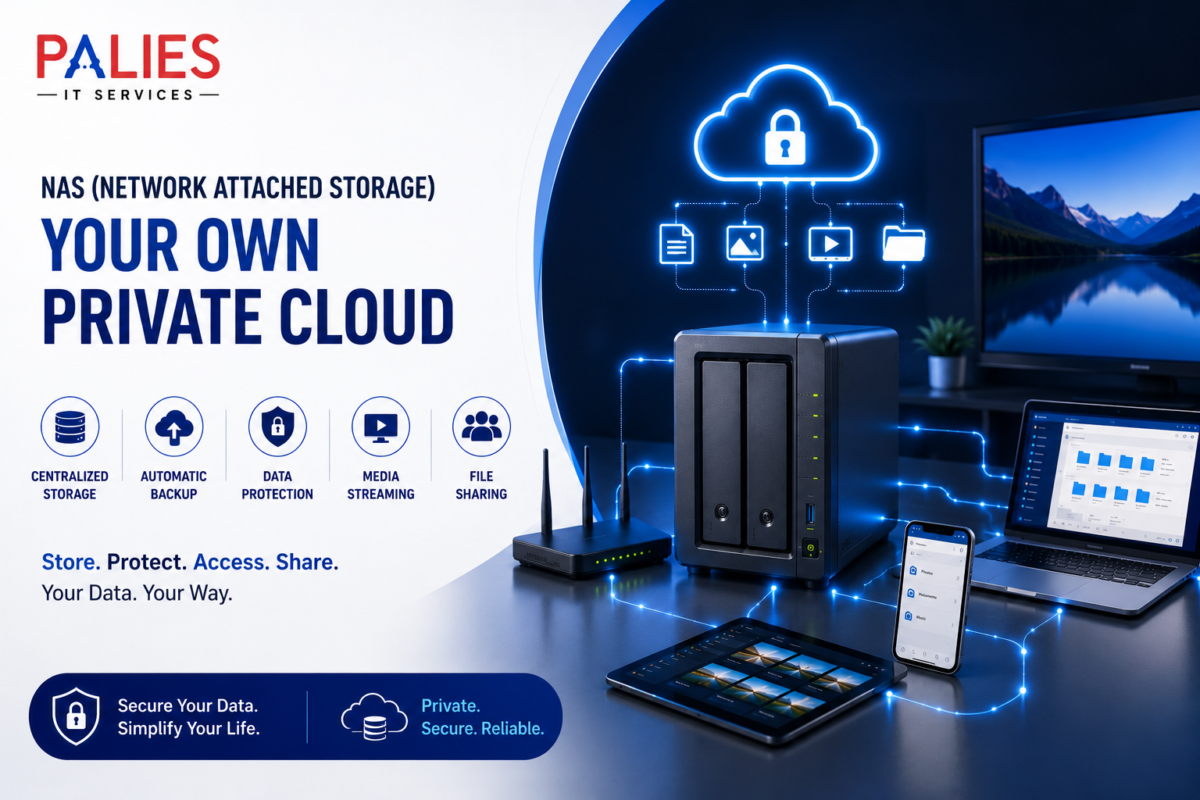
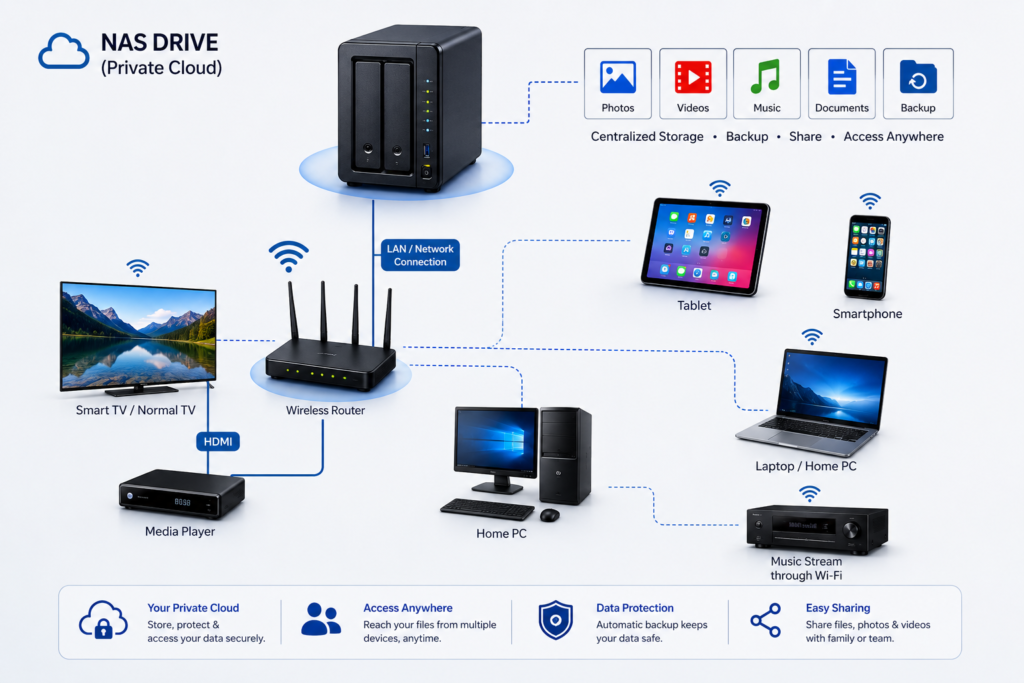
A NAS (Network Attached Storage) box is a dedicated storage device that connects to your home or office network, allowing multiple devices to store, access, and share files from one central location.

Think of it as your own private cloud. Instead of storing files on Google Drive, OneDrive, or Dropbox, you store them on a device that you own and control.

How a NAS Works

A NAS box contains

  • One or more hard drives (HDDs) or SSDs
  • A processor and memory
  • A network (Ethernet) port
  • An operating system designed for file sharing

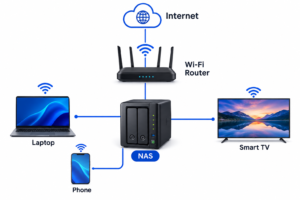
It connects to your Wi-Fi router via an Ethernet cable.

Any authorized device on your network—such as a laptop, desktop, smartphone, smart TV, or tablet—can access the files stored on the NAS.

Example:

Benefits of a NAS Box

1. Centralized Storage

Instead of keeping files scattered across multiple computers and external drives, everything is stored in one place.

Good for:

  • Photos
  • Videos
  • Documents
  • Music
  • Work files

2. Automatic Backup

Most NAS devices can automatically back up

  • Windows PCs
  • Macs
  • Android phones
  • iPhones

If your computer crashes, your files remain safe on the NAS.

3. Access Files Anywhere

Many NAS systems let you securely access your files over the internet.

This means you can:

  • Download documents while traveling
  • View photos remotely
  • Share files with family or coworkers

4. Private Cloud Storage

Unlike public cloud services:

  • You own the hardware.
  • You control your data.
  • There are no monthly storage fees (beyond the initial purchase and any electricity costs).

5. Data Protection with RAID

Most NAS devices support RAID (Redundant Array of Independent Disks).

For example:

  • Two 4 TB drives in RAID 1 provide about 4 TB of usable storage while mirroring the data. If one drive fails, your data remains available on the other drive.

Note: RAID improves availability but is not a substitute for backups. Important data should still be backed up elsewhere.

6. Media Streaming

A NAS can act as a home media server.

You can stream:

  • Movies
  • TV shows
  • Music
  • Photos

to:

  • Smart TVs
  • Phones
  • Tablets
  • Computers

7. File Sharing

Create separate accounts for:

  • Family members
  • Employees
  • Students

Each user can have different permissions.

8. Surveillance Storage

Many NAS devices support IP security cameras.

They can:

  • Record footage
  • Store videos
  • Send motion alerts

without requiring a separate computer to be running.

9. Run Applications

Some NAS models can host applications such as:

  • Personal photo management
  • Note-taking tools
  • Password managers
  • Docker containers
  • Development environments
  • Home automation services

10. Energy Efficient

A NAS typically consumes much less power than leaving a desktop computer running all day to serve files.

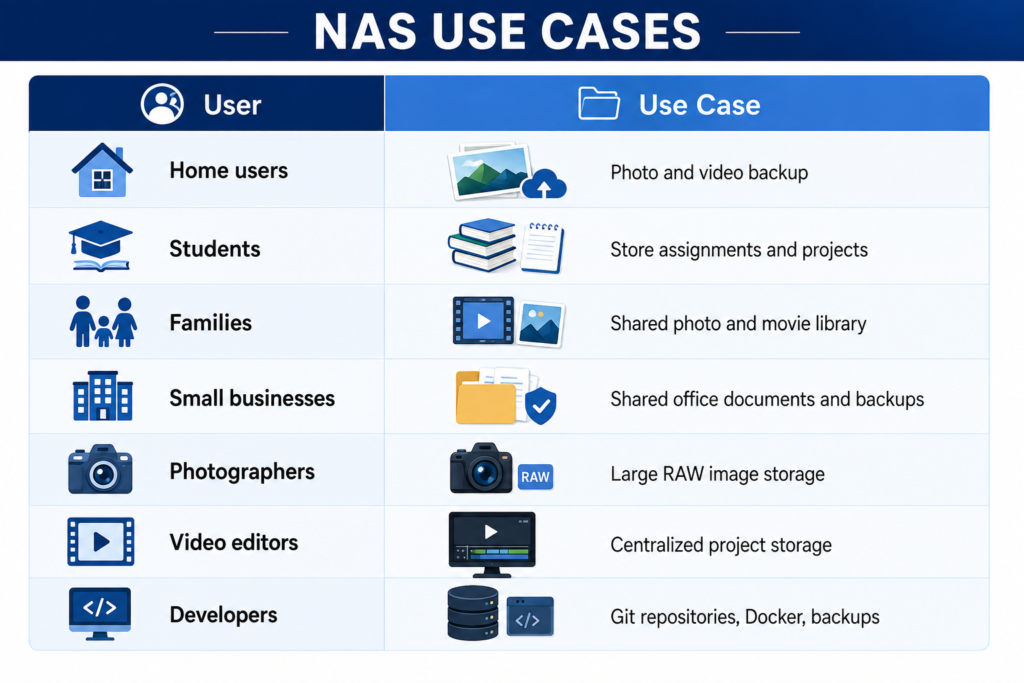
Common Uses


NAS vs External Hard Drive

Feature

NAS

External Drive

Network access

Multiple users

Automatic backup

Limited

Remote access

RAID support

Usually no

File sharing

Limited

Media server

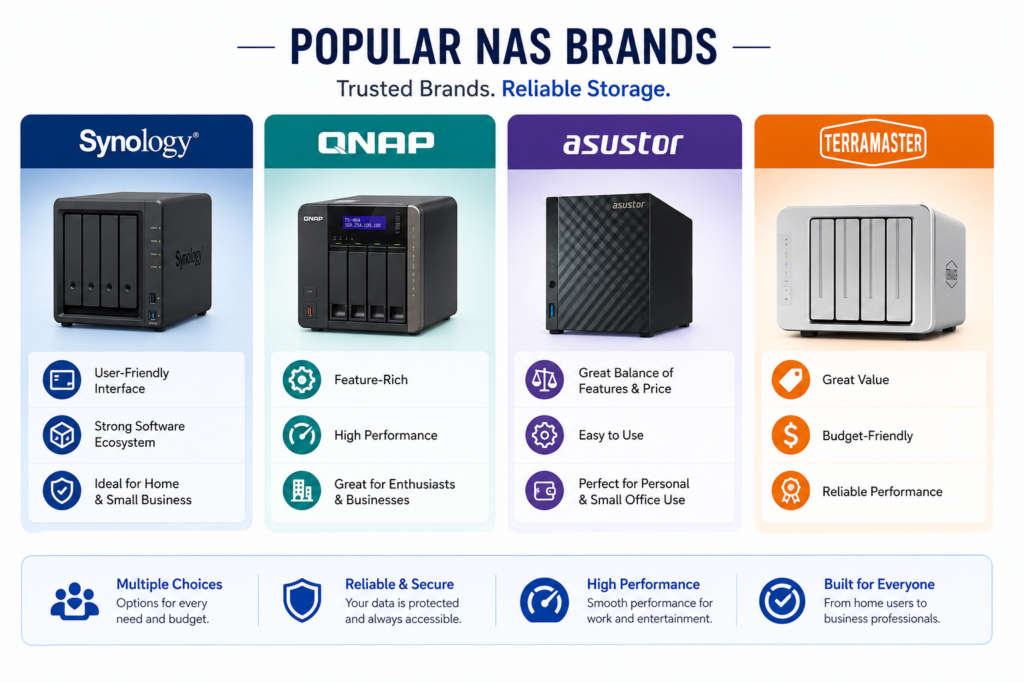
Popular NAS Brands


Some well-known manufacturers include:

  • Synology – Known for a polished, beginner-friendly interface and strong software ecosystem.
  • QNAP – Offers extensive features and good performance for enthusiasts and businesses.
  • ASUSTOR – Balances features and price.
  • TerraMaster – Often provides good value for budget-conscious users.

Who Should Buy a NAS?

A NAS is a good fit if you

  • Have lots of photos or videos.
  • Need automatic backups for multiple devices.
  • Want your own private cloud.
  • Share files with family or coworkers.
  • Stream media throughout your home.
  • Want to reduce dependence on subscription cloud storage.

If you only need occasional extra storage for one computer, an external USB drive is usually simpler and less expensive.

Potential Drawbacks

  • Higher upfront cost than an external drive.
  • Initial setup can take some time.
  • Requires at least one hard drive (often purchased separately).
  • Remote access should be secured with strong passwords and, ideally, multi-factor authentication.
  • RAID is not a replacement for a proper backup strategy.

    Example Home Setup

A family with:

  • 2 laptops
  • 3 smartphones
  • 1 smart TV
  • 1 tablet

could use a 2-bay NAS with mirrored drives to

  • Automatically back up everyone’s photos.
  • Store family videos in one place.
  • Stream movies to the TV.
  • Access documents while away from home.
  • Share albums securely with relatives.

For many households and small offices, a NAS provides a practical balance of convenience, control, and data protection without relying entirely on third-party cloud services.


Why Organizations Need Proper Infrastructure With Dedicated Servers, NAS, and Firewalls

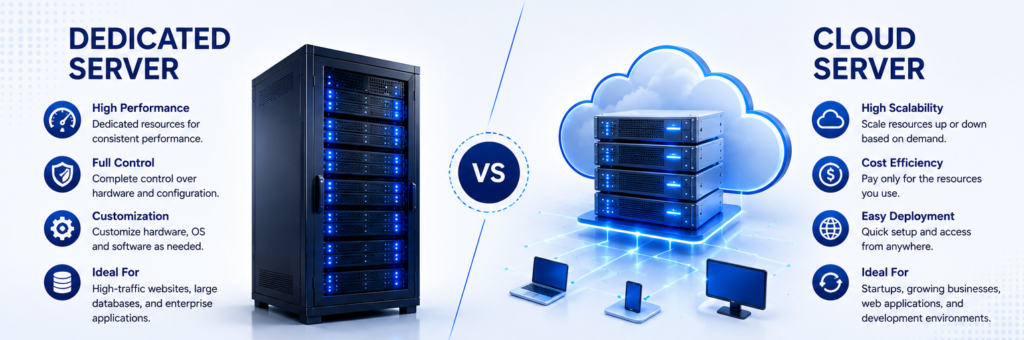
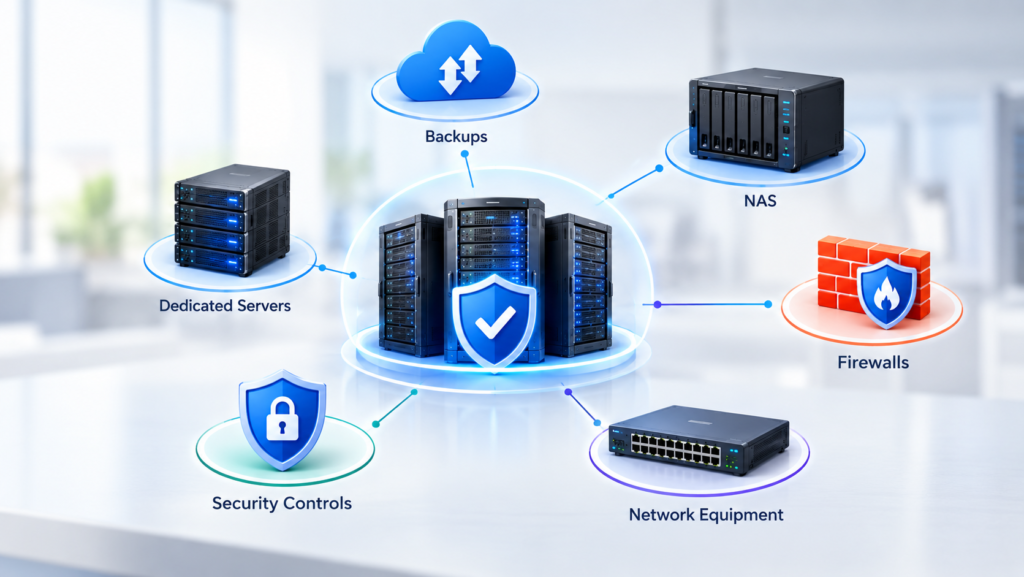
A proper infrastructure baseline built around dedicated servers, Network Attached Storage, and managed firewalls is not merely an IT upgrade. It is the minimum architecture most organizations need to control cybersecurity risk, deliver predictable service levels, and make compliance, backup, and recovery operationally effective rather than aspirational.

Firewalls control traffic between trust zones. Network segmentation limits lateral movement. Dedicated servers provide controlled computing resources for identity management, databases, business applications, and virtualization. NAS platforms centralize storage, backup, snapshots, and replication.

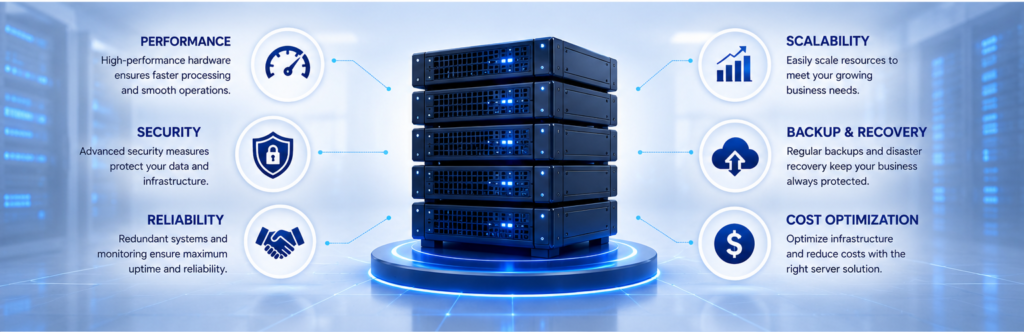
Together, these components support security, resilience, governance, recovery, and business continuity through technical controls that can be planned, monitored, documented, and tested.

Because every organization has a different environment, this article does not assume a specific industry, application mix, cloud platform, geographic footprint, or identity system. The recommendations are therefore divided into three broad categories:

  • Small organizations with up to 50 users
  • Medium organizations with 51 to 500 users
  • Large organizations with more than 500 users

As a general rule, small organizations should begin with one business-grade server, one backup-capable NAS, and a managed perimeter firewall with VLAN support.

Medium organizations should progress toward at least a two-host virtualization cluster, shared storage, immutable backups, and a high-availability firewall pair.

Large organizations should adopt clustered computing, tiered storage, high-availability firewalls, segmented networks, centralized logging, and hybrid off-site backup or disaster recovery.

The business case for proper infrastructure is strong, even before considering major incidents. A serious outage can cost an organization more than $100,000, while severe outages may result in losses exceeding $1 million. The average cost of a data breach can reach several million dollars.

Proper infrastructure does not eliminate these risks, but it materially reduces the probability that a single hardware failure, ransomware incident, misconfiguration, or unsuccessful restore becomes a business crisis.

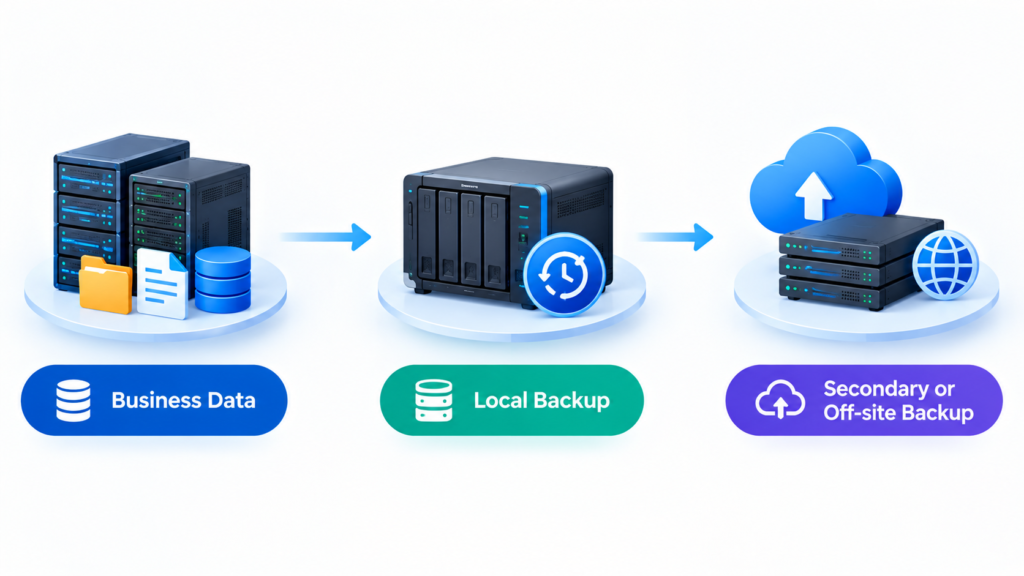
The recommended approach is to build a hybrid, defense-in-depth infrastructure baseline consisting of

  • Local dedicated servers for core workloads and low-latency control
  • NAS for centralized storage, snapshots, and backup
  • High-availability firewalls for segmentation and policy enforcement
  • Cloud object storage for off-site, immutable backup retention

For most organizations, this combination provides a practical balance of control, recovery speed, cybersecurity, scalability, and long-term cost management.

The Strategic Case for Proper IT Infrastructure

Organizations should view infrastructure as a control system for business risk, not simply as a collection of hardware.

Dedicated servers provide predictable computing power and administrative control for

  • Identity services
  • Line-of-business applications
  • Virtualization hosts
  • Databases
  • Business management tools
  • Authentication systems
  • Monitoring platforms

NAS platforms centralize file services and backup targets while enabling

  • Snapshots
  • Replication
  • Shared storage
  • Multi-protocol access
  • Backup retention
  • Disaster recovery support

Firewalls and segmentation enforce boundaries between

  • Users
  • Servers
  • Management systems
  • Guest networks
  • Backup platforms
  • Internet-facing services
  • Security devices
  • Remote users

Together, these three layers create a manageable foundation for confidentiality, integrity, availability, and recoverability.

Why Virtualization Is Important

Virtualization is a major force multiplier in modern infrastructure.

Full virtualization improves operational efficiency by allowing one physical server to host multiple virtual servers. Instead of operating several separate physical machines, an organization can consolidate multiple workloads onto fewer physical servers.

For example, one virtualization host may run

  • An Active Directory server
  • A file server
  • An application server
  • A database server
  • A monitoring server
  • A backup management server

This approach improves hardware utilization while supporting

  • Virtual machine snapshots
  • Workload migration
  • Backup integration
  • Easier maintenance
  • Simplified disaster recovery
  • Faster server provisioning
  • Better resource allocation

Virtualization also reduces dependence on scattered standalone systems that are difficult to maintain, monitor, and secure.

The Role of Cloud and Hybrid Infrastructure

Cloud computing remains important, but it does not remove the need for proper architecture.

Cloud platforms allow organizations to convert fixed infrastructure costs into variable operating costs. They also support rapid provisioning, elastic demand, off-site backup, and disaster recovery.

However, infrastructure decisions are rarely limited to choosing either cloud or on-premises systems.

A full-cloud model may be attractive for

  • Rapid deployment
  • Variable workloads
  • Temporary capacity
  • Geographic expansion
  • Remote access
  • Cloud-native applications

On-premises infrastructure may be better for

  • Local performance
  • Predictable workloads
  • Data control
  • Low latency
  • Custom security requirements
  • Regulatory obligations
  • Long-term cost predictability

A hybrid infrastructure model combines on-premises systems with public cloud services.

For many organizations, hybrid infrastructure provides the best balance of performance, security, cost management, control, resilience, and flexibility.

DimensionDedicated Servers On-PremisesPublic Cloud IaaSHybrid Recommendation
Cost modelPrimarily capital expenditure, plus support, power, and lifecycle costsOperating expenditure with pay-as-you-go pricingUse on-premises infrastructure for steady workloads and cloud services for backup, disaster recovery, temporary capacity, and demand bursts
ControlHigh control over hardware, firmware, topology, and data locationRapid provisioning but less physical controlKeep critical systems and management platforms local while extending to the cloud where it improves resilience
PerformanceStrong for local and predictable workloadsStrong for elastic demand and rapid scalingPlace latency-sensitive workloads locally and use cloud services for overflow and recovery
OperationsRequires internal patching, monitoring, maintenance, and lifecycle managementThe provider manages the physical infrastructureCentralize management regardless of where workloads are located
Compliance postureEasier to design around local data residency and custom requirementsUseful when cloud controls align with compliance needsUse hybrid infrastructure when regulations require local control but off-site resilience is also necessary


Security Foundations

Why Firewalls Are Essential

Firewalls are foundational because they control traffic between networks or systems with different security levels.

A firewall policy determines how inbound and outbound traffic is handled. Organizations must select, configure, test, deploy, monitor, and manage firewalls as formal policy-enforcement points.

A properly configured firewall can

  • Allow approved services
  • Block unauthorized access
  • Restrict risky protocols
  • Inspect network connections
  • Log network activity
  • Identify suspicious traffic
  • Protect internal resources
  • Support secure remote access

Strong segmentation, access controls, DMZ placement, and stateful inspection reduce the ability of attackers to move laterally or expose unnecessary services.

 Why Network Segmentation Matters

Segmentation reduces the attack surface by preventing all systems from being equally reachable.

Network segmentation divides a network into multiple physical or virtual sections.

In a well-designed environment, user devices should not operate on the same unrestricted network as:

  • Servers
  • Backup repositories
  • Security cameras
  • Printers
  • Management interfaces
  • Guest devices
  • Storage systems
  • Internet-facing applications

Typical network segments may include

  • User VLAN
  • Server VLAN
  • Guest VLAN
  • Backup VLAN
  • Management VLAN
  • Voice VLAN
  • CCTV VLAN
  • DMZ
  • Wireless device VLAN

Backups and management networks should be especially isolated because ransomware attackers frequently target administrative systems and accessible backup repositories.

A flat network allows attackers to move easily between systems. A segmented network limits movement and reduces the potential impact of a compromised device.

Encryption and Immutable Storage

Encryption protects data both at rest and while it is being transmitted.

Organizations may use:

  • Full-disk encryption
  • Volume encryption
  • Virtual disk encryption
  • File-level encryption
  • Folder-level encryption
  • Database encryption
  • Transport encryption

The appropriate method depends on the type of storage and the threat being addressed.

Modern NAS and cloud backup systems may also provide immutable storage or Write Once, Read Many protection.

Immutability is especially important because ransomware attackers often attempt to:

  • Delete backups
  • Encrypt backup repositories
  • Modify recovery points
  • Disable backup jobs
  • Compromise backup administrators

Immutable snapshots and backup copies prevent stored data from being altered or deleted during a defined retention period.

Logging and Forensic Readiness

Logging and forensic readiness transform infrastructure from simply being protected into being capable of investigation.

Strong log management should cover:

  • Servers
  • Firewalls
  • Storage platforms
  • Authentication systems
  • Backup systems
  • Applications
  • Network equipment
  • Cloud services
  • Administrative activities

Centralized servers and managed storage provide stable locations for:

  • Log forwarding
  • Security event retention
  • Time synchronization
  • Audit data
  • Incident response records
  • Backup job history
  • Access records

Without centralized logging, investigating an incident can become slow, incomplete, and expensive.

 Firewall Types and Their Best Uses

Firewall TypeWhat It Does BestBest Use CaseMain Trade-Off
Stateful inspection firewallTracks connection states and improves upon basic packet filteringBasic network boundary control and internal segmentationOffers less application and user context than modern next-generation firewalls
Next-generation firewallIdentifies applications, users, and content while adding intrusion prevention and deeper inspectionMedium and large organizations, regulated environments, and advanced policy enforcementHigher cost and greater policy complexity
Unified Threat Management applianceCombines antivirus, web filtering, VPN, anti-spam, application control, and other servicesSmall organizations and branch offices that require simpler administrationMay become a bottleneck if too many security services are enabled on undersized hardware

Security Requirements by Organization Size

Small organizations can usually start with:

  • A managed UTM or entry-level next-generation firewall
  • Four to six carefully designed VLANs
  • Secure remote access
  • Multi-factor authentication
  • Regular log reviews
  • Cloud or off-site backup

Medium organizations should consider

  • A high-availability firewall pair
  • MFA-protected administration
  • Dedicated server, user, guest, backup, and management zones
  • Centralized logging
  • Immutable backups
  • Secure VPN services
  • Intrusion prevention
  • Application-aware security policies

Large organizations should plan for:

  • Dedicated security zones
  • Zero-trust-style segmentation
  • Multiple firewall tiers
  • Centralized SIEM and SOAR workflows
  • Explicit forensic retention policies
  • Separate management networks
  • Separate backup networks
  • Multiple internet and WAN paths
  • Advanced threat detection

Availability, Reliability, and Recovery

Availability Is More Than Good Hardware

Availability is not achieved simply by purchasing high-quality equipment.

It comes from

  • Eliminating single points of failure
  • Defining recovery objectives
  • Monitoring critical systems
  • Testing backups
  • Validating restore processes
  • Maintaining redundant infrastructure
  • Documenting recovery procedures

Two important concepts are:

Recovery Point Objective

Recovery Point Objective, or RPO, is the maximum amount of data loss an organization can tolerate.

For example, an RPO of four hours means the organization may lose up to four hours of data following a major failure.

Recovery Time Objective

Recovery Time Objective, or RTO, is the maximum acceptable period of service downtime.

For example, an RTO of two hours means the affected service must be restored within two hours.

Organizations must ensure that their backup, server, firewall, storage, and recovery technologies can meet these objectives.

Layered Redundancy

Redundancy should be implemented across multiple infrastructure layers.

Server Redundancy

At the server level, redundancy may include

  • RAID
  • ECC memory
  • Dual power supplies
  • Multiple network connections
  • Multiple virtualization hosts
  • Hardware monitoring
  • Hot-swappable drives
  • Clustered workloads

Medium and large organizations should generally use at least two virtualization hosts so workloads can continue or be recovered during maintenance or hardware failure.

 Network Redundancy

At the network level, redundancy may include

  • High-availability firewalls
  • Redundant switches
  • Multiple internet connections
  • Redundant WAN paths
  • Dual network interfaces
  • Automatic failover
  • Separate management access

Storage and Backup Redundancy

At the storage level, redundancy should include:

  • RAID
  • Snapshots
  • Replication
  • Immutable backups
  • Off-site backups
  • Cloud backup copies
  • Restore testing

Snapshots alone are not backups.

Similarly, backups that remain permanently online and writable may still be vulnerable to ransomware.

Suggested Recovery Targets

A practical recovery profile may look like this:

Small Organizations

  • General file service RPO: 4 to 24 hours
  • General file service RTO: 4 to 8 hours
  • Identity and critical applications should be restored first

 Medium Organizations

  • Core service RPO: 1 to 4 hours
  • Core service RTO: 1 to 4 hours
  • Critical applications may require faster recovery

Large Organizations

  • Critical database RPO: less than one hour
  • Critical service RTO: less than one hour
  • Failover should be planned and automated where practical

These targets should be adjusted based on business impact, regulatory requirements, application importance, and operational risk.

Recommended Backup and Restore Procedures

Backup maturity is just as important as hardware selection.

Organizations should document:

  • Backup sources
  • Backup frequency
  • Retention periods
  • Encryption requirements
  • Encryption key management
  • Immutable retention periods
  • Restore priority
  • Administrative permissions
  • Off-site copy location
  • Recovery responsibilities
  • Restore testing schedule

At minimum, organizations should perform regular restore tests.

A backup is not reliable until it has been successfully restored.

Quarterly recovery testing should verify

  • Backup integrity
  • Application consistency
  • Authentication
  • File permissions
  • Recovery speed
  • Recovery order
  • Administrator access
  • Documentation accuracy

Performance, Scalability, and Technology Choices

Plan Performance Around Workloads

Performance planning should begin with the type of workload rather than a preferred hardware brand.

Different workloads require different storage and processing characteristics.

Databases and Transactional Systems

Databases, transactional applications, and virtual machine datastores often depend on:

  • High IOPS
  • Low latency
  • Reliable block-level access
  • Fast response times
  • Consistent performance

 File Sharing and Collaboration

Departmental file sharing, CAD repositories, media libraries, and collaboration folders often depend on:

  • Sequential throughput
  • File-based protocols
  • Easy access
  • Namespace simplicity
  • Shared permissions

Backup and Archive

Backup retention, archive data, and cloud-native information usually fit object storage well because it offers:

  • Large scale
  • Lifecycle management
  • Long-term retention
  • Cost-effective storage
  • Off-site resilience

IOPS and Throughput Are Not the Same

IOPS measures how many input and output operations a system can perform each second.

Throughput measures how much data can be transferred during a period of time.

A database may need high IOPS and low latency.

A media archive may require high sequential throughput.

A small-office file server may perform well on a NAS with SSD caching, while a large virtualization or database environment may require SAN-class block storage or all-flash shared storage.

 Caching and Tiering

Caching and tiering improve performance by placing frequently accessed data on faster storage.

Not all data is equally active.

A well-designed storage strategy may include:

  • High-performance media for databases
  • SSD or NVMe storage for virtual machines
  • NAS storage for active file shares
  • SSD cache for frequently accessed files
  • Lower-cost disks for backup
  • Cloud object storage for archive and off-site retention

Common storage services include:

  • Deduplication
  • Replication
  • Snapshots
  • Thin provisioning
  • Compression
  • Tiering
  • SSD caching

 Storage Technology Comparison

Storage OptionAccess ModelBest FitStrengthsConstraints
NASFile-level access over EthernetShared folders, collaboration, departmental applications, and backup repositoriesEasier administration, lower cost, snapshots, replication, and file sharingNot ideal for highly latency-sensitive transactional workloads
SANBlock-level access, usually through a high-performance storage networkDatabases, virtualization, and high-transaction environmentsLow latency, strong throughput, and excellent virtual machine datastore supportHigher cost and administrative complexity
Cloud object storageObject-based and API-drivenOff-site backup, archive, retention, and cloud-native applicationsLarge scale, lifecycle management, durability, and off-site resilienceHigher latency for active file or block workloads, and restore planning must be explicit

Vendor and Technology Selection Criteria

Technology selection should be based on capabilities rather than brand name alone.

Server Selection Criteria

Organizations should prioritize:

  • ECC memory
  • TPM 2.0
  • Secure Boot
  • Hardware-rooted trust
  • Remote out-of-band management
  • Dual power supply options
  • Multiple network interfaces
  • Virtualization support
  • Supportable operating systems
  • Vendor lifecycle support
  • Firmware update capability
  • Hardware monitoring

NAS Selection Criteria

A business NAS should ideally support:

  • Snapshots
  • Replication
  • Immutability
  • SMB
  • NFS
  • iSCSI
  • SSD caching
  • 10GbE or faster network upgrades
  • Backup software integration
  • Cloud replication
  • Access auditing
  • Encryption
  • Multi-factor authentication
  • Application-aware backup

Firewall Selection Criteria

A firewall should be evaluated based on

  • High-availability support
  • Application-aware policies
  • Intrusion prevention
  • VPN capabilities
  • Central management
  • Logging
  • API automation
  • Encrypted traffic inspection
  • User identification
  • Malware protection
  • Security subscription costs
  • Inspected throughput

Firewall sizing should be based on performance with security features enabled, not only on the headline routing speed.

Infrastructure Recommendations by Organization Size

Small Organizations: Up to 50 Users

Small organizations should generally consider:

  • One virtualization-capable business server
  • A second server if uptime is critical
  • One NAS with snapshots and cloud backup
  • A managed UTM or entry-level NGFW
  • Segmented VLANs
  • Secure wireless access
  • Centralized authentication
  • MFA for administrators
  • Cloud-based off-site backup
  • Basic centralized monitoring

Medium Organizations: 51 to 500 Users

Medium organizations should consider:

  • At least two virtualization hosts
  • Shared storage
  • 10GbE networking between servers and storage
  • High-availability firewalls
  • Separate server, user, backup, management, and guest networks
  • Immutable cloud backup
  • Centralized logging
  • Infrastructure monitoring
  • Regular recovery testing
  • Redundant internet connections
  • Secure remote management

Large Organizations: More Than 500 Users

Large organizations should plan for:

  • Clusters with three or more hosts per failure domain
  • High-performance storage tiers
  • East-west segmentation
  • Multiple internet and WAN connections
  • Dedicated management networks
  • Dedicated backup networks
  • Centralized identity
  • SIEM and SOAR platforms
  • High-availability firewall tiers
  • Disaster recovery sites
  • Cloud-backed retention
  • Formal business continuity plans
  • Automated failover for critical services

Operations, Compliance, and Governance

Manageability Creates Daily Value

Proper infrastructure delivers value every day through better manageability.

Strong infrastructure management includes:

  • Asset inventory
  • State tracking
  • Audited configuration changes
  • Firmware management
  • Patch planning
  • Monitoring
  • Lifecycle tracking
  • Documentation

Dedicated servers, managed NAS platforms, and enterprise firewalls make these activities practical because they expose:

  • Hardware inventory
  • Firmware versions
  • Configuration states
  • Logs
  • APIs
  • Monitoring data
  • Backup status
  • Security events

Consumer devices and unmanaged storage platforms rarely provide the same visibility, control, or supportability.

Monitoring Requirements

Monitoring should cover the entire infrastructure, not only endpoint devices.

Organizations should monitor

  • Server health
  • CPU and memory usage
  • Storage capacity
  • Disk health
  • RAID status
  • NAS availability
  • Firewall events
  • Configuration changes
  • Authentication logs
  • Backup job success
  • Snapshot status
  • Replication status
  • Certificate expiration
  • Restore-test evidence
  • Internet availability
  • Network performance

Logging and retention must be planned before an incident occurs.

Otherwise, post-incident investigation becomes incomplete and expensive.

Lifecycle Management

Infrastructure must have a managed lifecycle.

Organizations should track:

  • Warranty dates
  • Support contract expiration
  • Firmware baselines
  • End-of-sale dates
  • End-of-support dates
  • Replacement schedules
  • Refresh budgets
  • Configuration backups
  • Decommissioning procedures
  • Data destruction procedures

Aging and unsupported infrastructure creates hidden operational and security risks.

Untracked devices may continue operating until a failure, vulnerability, or compatibility issue causes a major disruption.

Compliance Requirements

Compliance frameworks do not normally instruct organizations to purchase a specific server, NAS, or firewall.

However, they require security outcomes that proper infrastructure helps organizations implement and demonstrate.

GDPR

GDPR requires appropriate protection for personal data, including:

  • Encryption
  • Access control
  • Confidentiality
  • Integrity
  • Availability
  • Resilience
  • Recovery

Centralized servers and NAS platforms support encryption, controlled retention, and restoration.

Firewalls and segmentation reduce exposure and help organizations apply security controls appropriate to risk.

HIPAA

HIPAA requires administrative, physical, and technical safeguards for protected health information.

Infrastructure can support:

  • Access control
  • Audit logging
  • Data integrity
  • Availability
  • Backup
  • Contingency planning
  • User authentication
  • Recovery testing

PCI DSS

PCI DSS requires controls related to:

  • Network security
  • Secure configuration
  • Stored account data
  • Cryptography
  • Vulnerability management
  • Monitoring
  • Logging

Firewalls help define cardholder-data boundaries.

Dedicated systems reduce unnecessary scope.

Centralized storage and logging simplify compliance evidence.

FrameworkInfrastructure Controls That HelpWhy Servers, NAS, and Firewalls Matter
GDPREncryption, access control, resilience, logging, recovery, and least privilegeServers and NAS support encryption, retention, and recovery, while firewalls and segmentation reduce exposure
HIPAATechnical safeguards, integrity, availability, audit controls, and contingency planningProtected health information requires centralized access, logs, backups, and tested recovery
PCI DSSNetwork security, secure configuration, protected account data, cryptography, vulnerability management, and monitoringFirewalls define security boundaries, dedicated systems reduce scope, and centralized logging improves evidence collection

Governance: The Missing Layer

Governance is often the missing layer in small and medium-sized environments.

Cybersecurity expectations, priorities, ownership, and communication should be defined at the organizational level.

Infrastructure governance should establish approved standards for

  • Segmentation
  • Backup retention
  • Encryption
  • Logging
  • Patching
  • Remote administration
  • Vendor support
  • Access control
  • Password management
  • MFA
  • Exception handling
  • Lifecycle management
  • Incident response

Without governance, even good hardware may drift into inconsistent configurations, outdated policies, and hidden risks.

Cost, ROI, and Sample Total Cost of Ownership

Infrastructure costs should be evaluated using:

  • Capital expenditure
  • Operating expenditure
  • Support costs
  • Licensing
  • Power usage
  • Cooling
  • Maintenance
  • Implementation
  • Risk-adjusted total cost of ownership

On-premises infrastructure typically requires more spending at the time of purchase, but it may be economical for predictable workloads over three to five years.

Cloud services convert much of that cost into variable operating expenditure.

Cloud infrastructure is useful for:

  • Elastic demand
  • Rapid deployment
  • Off-site backup
  • Disaster recovery
  • Temporary workloads
  • Testing environments

The right model is workload-specific, which is why hybrid infrastructure remains attractive.

Illustrative Three-Year TCO

The following figures are examples and should not be treated as procurement quotations.

They are intended to demonstrate how architecture costs may scale based on organization size.

Organization SizeIllustrative ArchitectureThree-Year Illustrative TCOKey Assumptions
Small, up to 50 usersOne tower server, one two-bay NAS, one pair of SMB firewalls or gateways, and cloud backupApproximately $17,800Includes representative server and NAS pricing, 2 TB of cloud backup, disks, support, switching, implementation, and estimated power use
Medium, 51 to 500 usersTwo rack servers, one eight-bay NAS, an HA midmarket firewall pair, and 10 TB of cloud backupApproximately $79,400Includes two virtualization hosts, storage, licensing, switching, implementation, firewall costs, and estimated power use
Large, more than 500 usersSix rack servers, enterprise storage, enterprise HA firewalls, and 50 TB of cloud backupApproximately $420,400Includes clustered compute, enterprise storage, networking, licensing, implementation, security platforms, and estimated power use

These figures will vary based on:

  • Vendor
  • Hardware configuration
  • Support level
  • Location
  • Electricity costs
  • Storage requirements
  • Software licensing
  • Implementation services
  • Cloud retention periods
  • Network design
  • Availability requirements

The ROI Case

The return on investment becomes stronger when risk reduction is included.

A small organization may recover its infrastructure investment by avoiding

  • One major server outage
  • One ransomware event
  • One failed restore
  • One long period of employee downtime
  • One serious data-loss incident

A medium organization may justify the investment by avoiding a single outage that prevents dozens or hundreds of employees from working.

Even conservative downtime assumptions can justify infrastructure spending that is modest compared with the financial impact of a major incident.

CapEx Versus OpEx

Capital expenditure should be used where workloads are:

  • Stable
  • Local
  • Predictable
  • Latency-sensitive
  • Compliance-constrained

Operating expenditure may be better where workloads are:

  • Temporary
  • Bursty
  • Rapidly scaling
  • Off-site
  • Disaster-recovery focused

Organizations should also avoid false savings from consumer-grade equipment that cannot support

  • Segmentation
  • Logging
  • Backup
  • High availability
  • Restore testing
  • Security inspection
  • Vendor support

Recommended Network Architecture

Network architecture should follow established best practices.

Organizations should

  • Place public services in a DMZ
  • Separate user, server, guest, backup, and management VLANs
  • Route traffic between VLANs through policy-controlled firewalls
  • Keep administrative platforms off the general user network
  • Prevent universal write access to backup systems
  • Separate backup credentials from standard user credentials
  • Protect remote administration with MFA
  • Centralize logging
  • Monitor configuration changes
  • Test recovery

Small Organization Architecture

A practical small-business design may include

  • One protected virtualization server
  • One NAS with snapshots
  • Cloud backup
  • One managed firewall
  • Separate user, server, guest, and management VLANs
  • Secure Wi-Fi
  • MFA
  • Basic monitoring

Medium Organization Architecture

A medium-sized business should add:

  • A second virtualization host
  • Shared storage
  • An HA firewall pair
  • Centralized logging
  • Immutable backups
  • Restore drills
  • Redundant internet
  • Dedicated backup and management networks

Large Organization Architecture

A large organization should use

  • Clustered computing
  • High-performance storage
  • Dedicated backup and management networks
  • High-speed east-west connectivity
  • Centralized identity
  • Centralized logging
  • Multiple security zones
  • Multiple internet and WAN paths
  • Cloud-backed retention
  • Disaster recovery planning

Hybrid architecture is generally the best default unless there is a specific business, regulatory, financial, or technical reason to operate fully in the cloud or fully on-premises.

Infrastructure Migration Plan

Migration should be completed in controlled phases.

Migration PhaseWhat to DoEvidence of Completion
DiscoveryInventory assets, applications, data classifications, dependencies, support status, and compliance scopeCurrent asset register, dependency map, and data classification list
DesignDefine VLANs, firewall policies, server roles, backup tiers, RTO and RPO targets, log retention, and administrative accessApproved architecture, policy matrix, and recovery objective table
BuildInstall equipment, update firmware, enable TPM and Secure Boot, create VLANs, configure snapshots, backups, MFA, and loggingHardened baseline documents and configuration backups
Pilot migrationMove low-risk services first and validate performance, backup, and recoveryPilot acceptance report and rollback plan
CutoverMigrate critical services in controlled waves with validation and rollback proceduresCutover logs, service validation, and user acceptance
Hardening and operationsBegin continuous monitoring, patching, quarterly restore drills, and annual lifecycle reviewsMonitoring dashboards, patch reports, and successful restore-test evidence


 Risks and Trade-Offs

Proper infrastructure introduces additional complexity, process requirements, and lifecycle costs.

Storage platforms may be misconfigured.

Hybrid environments may create monitoring gaps if ownership and tools are fragmented.

Organizations may also overbuy hardware and lock capital into underused systems.

The answer is not to avoid infrastructure.

The answer is to right-size it, standardize it, and govern it properly.

Risk or Trade-OffWhy It MattersMitigation
Higher upfront costCapital expenditure may be difficult to approvePhase purchases, start with hybrid backup, and connect spending to RTO, RPO, compliance, and business risk
Operational complexityMore systems require more configuration and monitoringStandardize platforms and automate backups, patches, alerts, and reporting
Skills dependencySmall IT teams may struggle with high availability and recovery testingUse simpler vendor platforms or managed services where internal expertise is limited
Firewall performance bottlenecksSecurity inspection can reduce throughput when appliances are undersizedPurchase firewalls based on inspected throughput, not only routing speed
Backups that cannot be restoredUntested backups may fail during an actual emergencySchedule regular restore drills and document recovery order, ownership, and credentials
MisconfigurationStorage, firewall, and cloud settings may expose systemsApply approved baselines, configuration review, and change control
Lifecycle debtUnsupported hardware creates security and reliability problemsTrack warranty, support, end-of-life, and replacement dates

Executive Recommendation

Organizations should take the following actions.

  1. Standardize a Segmented Infrastructure

Implement dedicated

  • Server VLANs
  • User VLANs
  • Guest VLANs
  • Management VLANs
  • Backup VLANs

Place them behind a managed firewall or high-availability firewall pair.

  1. Centralize Storage and Backup

Use a NAS or equivalent storage platform that supports:

  • Snapshots
  • Replication
  • Immutability
  • Off-site cloud backup
  • Encryption
  • Access control
  • Recovery testing
  1. Consolidate Workloads

Move critical workloads away from scattered standalone computers and unmanaged local storage.

Host them on supportable, secure, remotely managed, virtualization-capable servers.

  1. Treat Operations as a Discipline

Logging, patching, monitoring, backup, and restore testing should be treated as standard operating practices rather than optional activities.

  1. Align Infrastructure With Compliance

Map the infrastructure design to the organization’s actual regulatory obligations, such as:

  • GDPR
  • HIPAA
  • PCI DSS
  • Industry-specific requirements
  • Local data-protection laws

The Three Most Important First Steps

For an organization beginning with limited infrastructure, the three highest-priority actions are:

Deploy Segmentation and Managed Firewalls

Separate users, servers, backup systems, guest devices, and management platforms.

Establish Centralized and Immutable Backups

Use NAS storage, snapshots, off-site copies, immutable retention, and tested restores.

Consolidate Critical Workloads on Dedicated Servers

Move important services onto secure, supportable, and centrally managed server platforms.

These three actions provide some of the fastest improvements in:

  • Security
  • Availability
  • Compliance readiness
  • Data protection
  • Recovery
  • Operational clarity
  • Business continuity

Conclusion

Dedicated servers, NAS platforms, and managed firewalls are not isolated technology purchases. Together, they form the core of a secure, resilient, and manageable IT environment.

Dedicated servers provide controlled computing resources for identity, databases, applications, and virtualization.

NAS platforms centralize storage, backup, snapshots, replication, and recovery.

Firewalls enforce security policies, control network traffic, and limit lateral movement through segmentation.

When these systems are designed as part of a unified infrastructure strategy, organizations gain

  • Better security
  • Faster recovery
  • Higher availability
  • Stronger compliance readiness
  • Improved performance
  • Centralized control
  • Easier monitoring
  • Better scalability
  • Reduced business risk

For most organizations, the best approach is a hybrid, defense-in-depth architecture that combines local control with cloud-based resilience.

The objective is not simply to purchase hardware. It is to create an infrastructure platform that protects operations, supports growth, enables recovery, and gives the organization confidence that its critical systems and data remain available when they are needed most.


10 Signs Your Laptop Needs Professional Repair Immediately

Your laptop plays a vital role in your daily routine, whether you’re working from home, managing a business, attending online classes, or simply staying connected. When it starts showing signs of trouble, ignoring them can turn a small issue into a costly repair or even permanent data loss.
Many laptop problems begin with subtle symptoms that users often overlook. Recognizing these warning signs early and seeking help from a trusted Laptop Service Center in Coimbatore can save you time, money, and frustration.
In this blog, we’ll explore the 10 most common signs that indicate your laptop needs professional repair immediately.

1. Your Laptop is Running Extremely Slow

Has your laptop become painfully slow, even for simple tasks like opening a browser or launching applications?

Slow performance can result from:

•Failing hard drive
•Insufficient RAM
•Malware infections
•Overheating
•Outdated operating system
•Background software consuming resources

While basic troubleshooting may help temporarily, persistent slowness often points to underlying hardware or software issues that require professional diagnosis.
A technician can identify the root cause and recommend upgrades such as an SSD installation or RAM expansion to restore your laptop’s speed.

2. Frequent System Crashes or Blue Screen Errors

Unexpected shutdowns, freezing screens, or the infamous Blue Screen of Death (BSOD) are strong indicators that your laptop needs immediate attention.

Possible causes include:

  • Faulty RAM
  • Corrupted Windows files
  • Driver conflicts
  • Hard disk failure
  • Motherboard issues

Ignoring repeated crashes increases the risk of data corruption and complete system failure.

Professional diagnostics can accurately identify the issue before it worsens.

3. Overheating During Normal Use

If your laptop becomes unusually hot while browsing, working, or streaming videos, overheating may be damaging internal components.

Common reasons include:

  • Dust buildup inside cooling vents
  • Failed cooling fan
  • Dried thermal paste
  • Heavy background processes

Overheating not only reduces performance but also shortens the lifespan of your laptop.

Regular professional cleaning and thermal maintenance help prevent expensive repairs

4 .Strange Noises from the Laptop

A healthy laptop should operate quietly.

If you hear

  • Clicking sounds
  • Grinding noises
  • Loud fan noise
  • Buzzing sounds

your laptop may have

  • Hard drive damage
  • Cooling fan failure
  • Loose internal components

These warning signs should never be ignored because they often indicate imminent hardware failure.

5. Battery Drains Very Quickly

If your fully charged battery lasts only a short time, it could be caused by

  • Aging battery cells
  • Charging circuit issues
  • Faulty power management
  • Excessive background applications

A professional technician can test your battery health and recommend replacement if necessary.

Replacing the battery early prevents sudden shutdowns and protects your work.

6. Laptop Screen Problems

Display issues are among the most common repair requests.

Signs include:

  • Flickering screen
  • Black display
  • Dead pixels
  • Colored lines
  • Dim brightness
  • Cracked screen

These symptoms may result from

  • Damaged LCD panel
  • Faulty display cable
  • Graphics chip failure
  • Screen connector issues

Professional diagnosis ensures only the faulty component is replaced.

7. Laptop Doesn’t Charge Properly

A laptop that refuses to charge doesn’t always have a bad battery.

Possible causes include

  • Damaged charging port
  • Faulty adapter
  • Motherboard charging circuit
  • Battery failure

Using incompatible chargers can worsen the problem.

Experienced technicians test every charging component before replacing parts unnecessarily.

8. Keyboard or Touchpad Stops Working

If certain keys stop responding or your touchpad behaves erratically, the issue may involve

  • Liquid damage
  • Driver corruption
  • Internal cable problems
  • Keyboard controller failure

Temporary fixes rarely solve hardware-related keyboard issues.

Professional repair ensures accurate replacement without damaging surrounding components.

9. Unusual Pop-Ups or Virus Infections

Frequent advertisements, unknown software installations, browser redirects, and slow performance often indicate malware or virus infections.

Professional virus removal includes

  • Malware scanning
  • Spyware removal
  • Data protection
  • Operating system cleanup
  • Security optimization

Attempting to remove advanced malware yourself may lead to accidental data loss.

10. Laptop Won’t Turn On

Perhaps the most obvious warning sign is a laptop that refuses to power on.

Possible reasons include

  • Motherboard failure
  • Power IC issues
  • RAM failure
  • Dead SSD or hard drive
  • Internal short circuit

Professional diagnostic equipment helps identify the exact fault without unnecessary replacements.

The sooner you seek assistance, the higher the chances of recovering both your laptop and important data.

Why Choose Palies for Laptop Repair in Coimbatore?

When your laptop requires professional attention, choosing a trusted service provider makes all the difference.

Palies offers

  • Experienced technicians
  • Multi-brand laptop repair
  • Genuine replacement parts
  • Motherboard-level repairs
  • SSD and RAM upgrades
  • Screen replacement
  • Data recovery services
  • Virus removal
  • Doorstep laptop support
  • Fast turnaround time
  • Affordable pricing
  • Business and home support

Whether you’re facing hardware failures, software issues, or performance problems, Palies provides reliable solutions tailored to your needs.

Conclusion

Ignoring early warning signs can turn a minor laptop issue into a costly repair or complete system failure. By recognizing symptoms such as slow performance, overheating, charging problems, screen issues, or unexpected crashes, you can take action before the damage becomes severe.

If you’re experiencing any of these problems, trust the experts at Palies for reliable Laptop Repair in Coimbatore. Our experienced technicians diagnose issues accurately and provide cost-effective repair solutions to keep your laptop running smoothly.

FAQs

  1. How do I know if my laptop needs professional repair?
    If your laptop is slow, overheats, crashes frequently, or has hardware issues like charging or display problems, it’s time for professional inspection.
  2. Is it worth repairing an old laptop?
    Yes, if the repair cost is significantly lower than buying a new device and the laptop meets your performance needs.
  3. How long does laptop repair usually take?
    Most common repairs are completed within 1–3 business days, depending on the issue and spare part availability.

Storing and accessing data and programs over the internet.

Excepteur sint occaecat cupidatat non proident, sunt in culpa qui officia deserunt mollit anim id est laborum. Sed ut perspiciatis unde omnis iste natus error sit voluptatem accusantium doloremque laudantium, totam rem aperiam, eaque ipsa quae ab illo inventore veritatis et quasi architecto beatae vitae dicta sunt explicabo.

(more…)